A interactive web app that is the clone of an application already available with the name "MICROSOFT TEAMS".
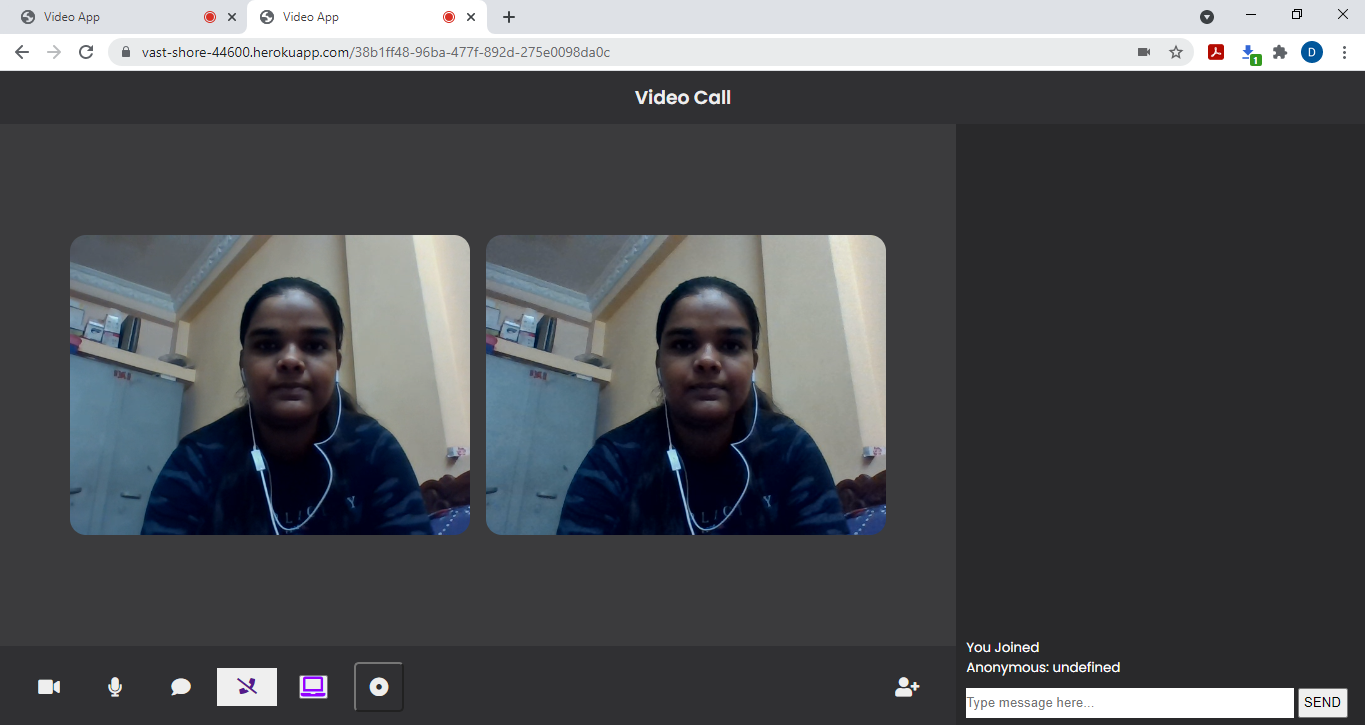
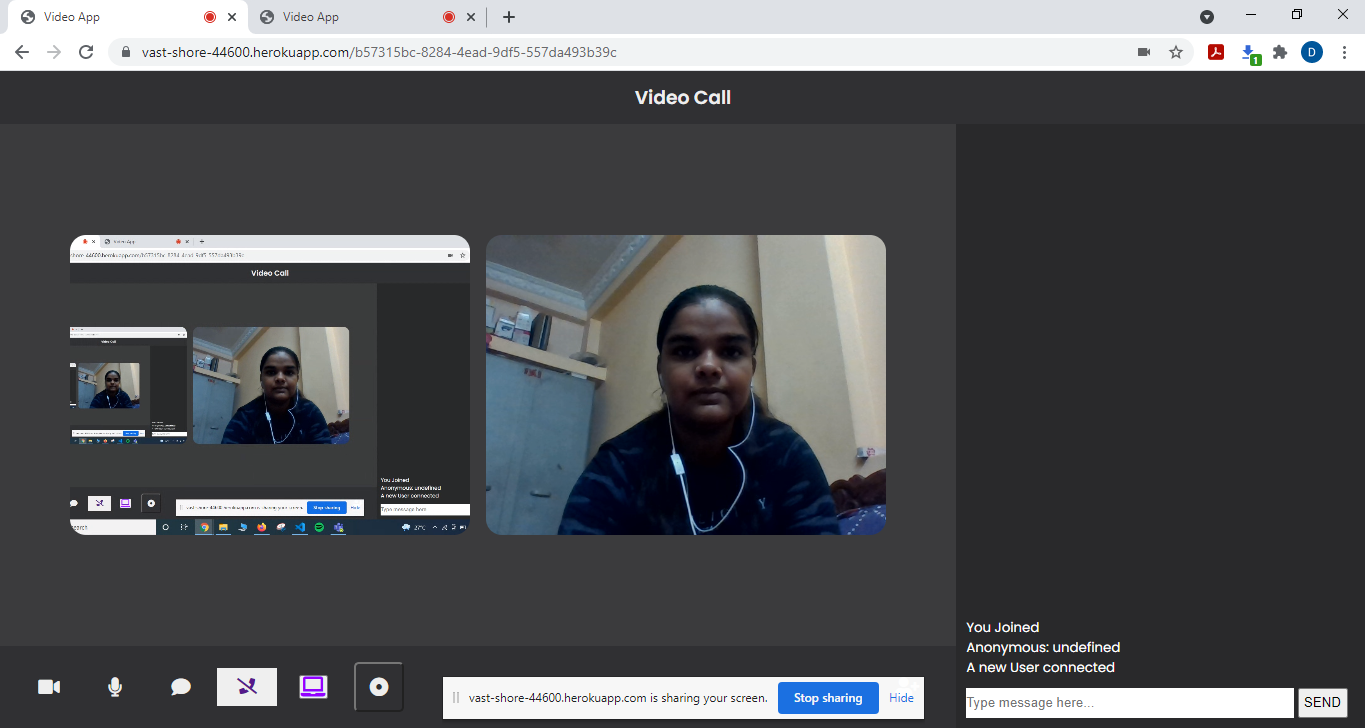

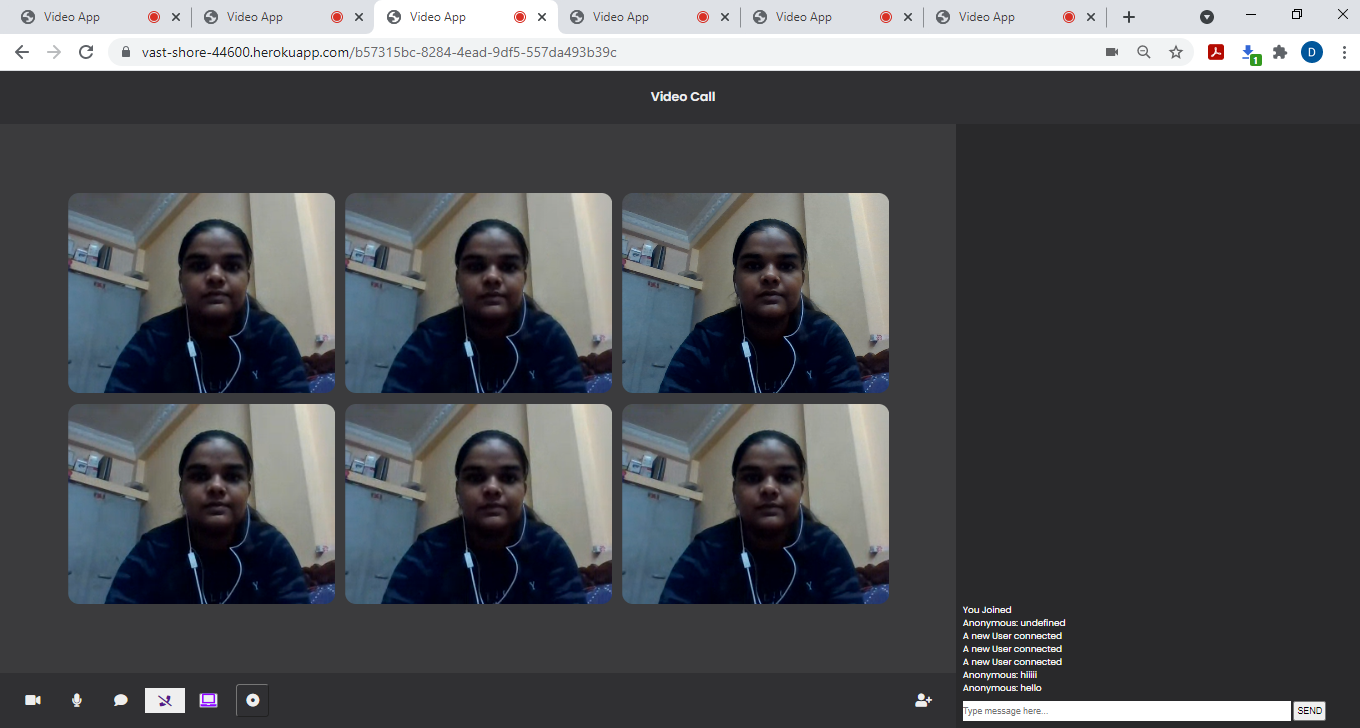
- Video Call One-to-one.
- Invite via link feature.
- Video Call Conference (Connection upto 6 users is possible but it works perfectly for upto 4 users, hangs a little bit for 6 users)
- User can Mute/Unmute himself.
- User can Mute/Unmute other users and increase/decrease their volume at his end during Group as well as One-on-One Call.
- User can turn on/off his own Video.
- Chat Feature during both One-on-One and Conference Call.
- Screen share allowed during One-on-One Call and during Conference Call as well(Here, it is only visible to one of the Users).
- Picture-in-Picture mode allowed.
- User can switch anyone's video(including himself) to Full Screen mode.
- User can Play/Pause anyone's video.
- User can Record his Video during both One-on-One Call as well as Conference Call.
- User can Record his Screen during both One-on-One Call as well as Conference Call.
- Leave from the meeting feature.
- EJS
- CSS
- Javascript
- NodeJs
- webRtc(peer.js)
| Sprint Week | Bugs and Deliverables |
|---|---|
| Sprint 1 | Designed the Solution,planned the deadlines,researched for the libraries and APIs , got them reviewd by the mentors. |
| --- | --- |
| Sprint 2 | Implmented the Basic minimal feature required with basic UI along with some other features like audio and video on/off.Received the feedback from the Mentors to improve the UI and add more features. |
| --- | --- |
| Sprint 3 | Improved the UI as suggested by mentors, added some more features like Chat and Screen Share. Got the feedback to work on documentations and improving code quality. |
| --- | --- |
| Sprint 4 | Improved the UI, README.md and added comments to the code wherever required.Also added a new feature to record screen and video. |
Some of the references used for implementation of this Web App are:
- https://tsh.io/blog/how-to-write-video-chat-app-using-webrtc-and-nodejs/
- https://www.youtube.com/watch?v=XWL_Rzqk4CY&t=155s
- https://shadidhaque.medium.com/building-a-video-chat-application-with-socket-io-and-typescript-9fe9f4567594
- Download the Zip. (Refer youtube tutorials to clone/download zip if you face any issue)
- Extract the folder named as "Microsoft_Teams_Clone-master".
- Open the above folder in any IDE you prefer to use. Visual Studio Code was used for this project.
- Open the terminal and check the location.
- Install essential dependencies like socket.io , express , nodemon , ejs using command : [npm install "dependency name"] (write dependency name without " " and command without [])
- Run command node server.js.
- Open Google Chrome (preferred) and go to the link "localhost:4000/"
- Copy this link and open it in a new tab.
- Congrats!! You managed to run webapp on your local system.
Heroku.com
- All you need is an account on heroku
- Create Heroku account
- Link the Heroku account to git repository
- This will generate the url where your app is running
- Click on the url.
- Congrats!! You are done.
Some of the references used to Deploy the Web-App:
- https://devcenter.heroku.com/articles/node-websockets
- https://www.youtube.com/watch?v=MxfxiR8TVNU&t=311s
Link:
https://vast-shore-44600.herokuapp.com/
Steps:
- Open the link in your browser.
- You will get unique key on screen, add it to the link. Eg: "link/unique_key".
- Share this unique link with your friends with whom you want to talk.
- Here you go.Your Video Conversion Started. Isn't it?
- Also, this may need refreshing the browser at the User1 end for the connection to established.