For Linux/Mac users, please open a terminal and type the following command to install Julia with juliaup. Juliaup is a tool to manage Julia versions and installations. It allows you to install multiple versions of Julia and switch between them easily.
curl -fsSL https://install.julialang.org | sh # Linux and macOSFor Windows users, please open execute the following command in a cmd,
winget install julia -s msstore # WindowsYou can also install Juliaup directly from Windows Store.
You may need to specify another server for installing Juliaup. To do so, execute the following command in your terminal before running the script above.
Linux and macOS
export JULIAUP_SERVER=https://mirror.nju.edu.cn/julia-releases/ # Linux & macOSWindows
$env:JULIAUP_SERVER="https://mirror.nju.edu.cn/julia-releases/" # WindowsAn alternative approach is downloading the corresponding Julia binary from the Nanjing university mirror website. After installing the binary, please set the Julia binary path properly if you want to start a Julia REPL from a terminal, check this manual page to learn more.
To verify that Julia is installed, run the following command in your terminal.
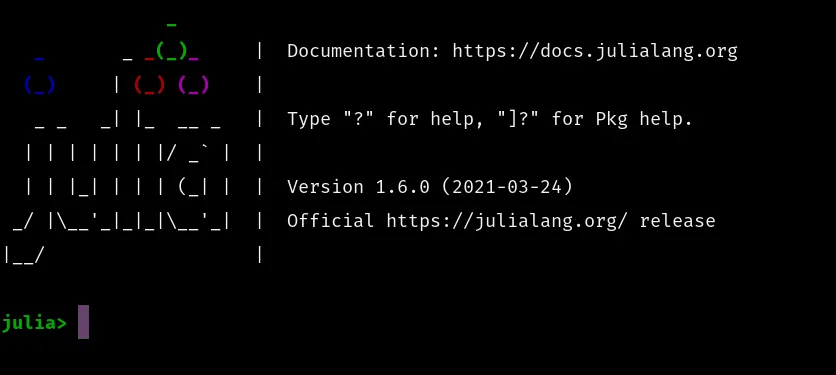
julia- It should start a Julia REPL(Read-Eval-Print-Loop) session like this
- If you wish to install a specific version of Julia, please refer to the documentation.
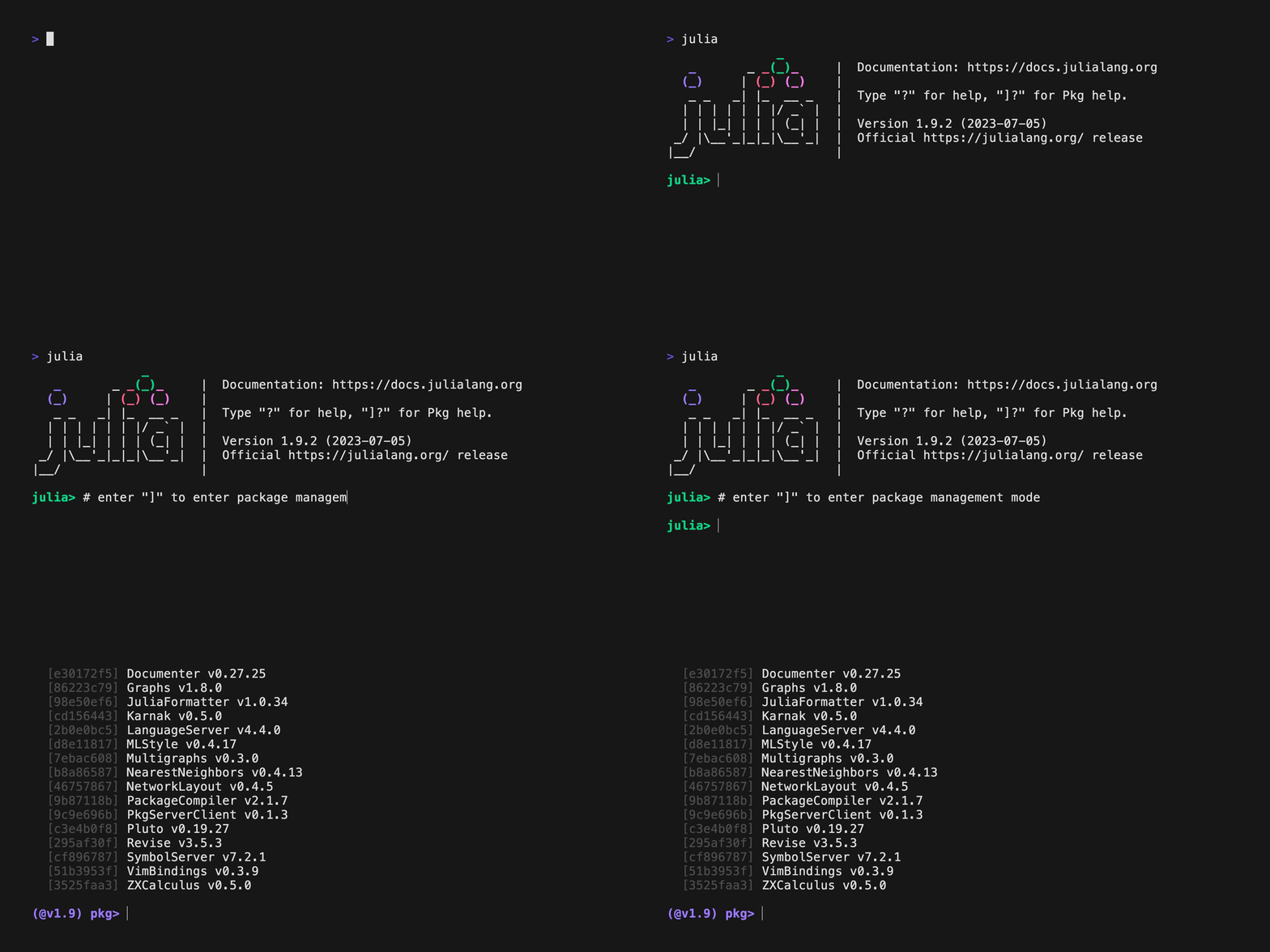
Juliahas a mature eco-system for scientific computing.Pkgis the built-in package manager for Julia.- To enter the package manager, press
]in the REPL.
- The environment is indicated by the
(@v1.9). - To add a package, type
add <package name>. - To exit the package manager press
backspacekey - Read More
First create a new file ~/.julia/config/startup.jl by executing the following commands
mkdir -r ~/.julia/config
touch ~/.julia/config/startup.jl
You could open the file with your favourite editor and add the following content
ENV["JULIA_PKG_SERVER"] = "http://cn-southeast.pkg.juliacn.com/"
try
    using Revise
catch e
    @warn "fail to load Revise."
end
The contents in the startup file is executed immediately after you open a new Julia session.
Then you need to install Revise, which is an Julia package that can greatly improve the using experience of Julia. To install Revise, open Julia REPL and type
julia> using Pkg; Pkg.add("Revise")If you don't know about startup.jl and where to find it, here is a good place for further information. Windows users can find their Julia config file in JULIA_INSTALL_FOLDER\etc\julia\startup.jl
- You may find more Julia packages here.
As a final step, please verify your Julia configuration by openning a Julia REPL and type
julia> versioninfo()
Julia Version 1.9.2
Commit e4ee485e909 (2023-07-05 09:39 UTC)
Platform Info:
  OS: macOS (arm64-apple-darwin22.4.0)
  CPU: 10 × Apple M2 Pro
  WORD_SIZE: 64
  LIBM: libopenlibm
  LLVM: libLLVM-14.0.6 (ORCJIT, apple-m1)
  Threads: 1 on 6 virtual cores
Environment:
  JULIA_NUM_THREADS = 1
  JULIA_PROJECT = @.
JULIA_PKG_SERVER = http://cn-southeast.pkg.juliacn.com/ Install VSCode by downloading the correct binary for your platform from here.
Open VSCode and open the Extensions tab on the left side-bar of the window, search Julia and install the most popular extension.
read more...

You are ready to go, cheers!
A Julia REPL has four modes,
-
Julian mode is the default mode that can interpret your Julia code.
-
Shell mode is the mode that you can run shell commands. Press
;in the Julian mode and type
shell> date
Sun Nov  6 10:50:21 PM CST 2022
To return to the Julian mode, type the Backspace key.
- Package mode is the mode that you can manage packages. Press
]in the Julian mode and type
(@v1.8) pkg> st
Status `~/.julia/environments/v1.8/Project.toml`
  [295af30f] Revise v3.4.0
To return to the Julian mode, type the Backspace key.
- Help mode is the mode that you can access the docstrings of functions. Press
?in the Julian mode and type
help> sum
... docstring for sum ...
To return to the Julian mode, type the Backspace key.