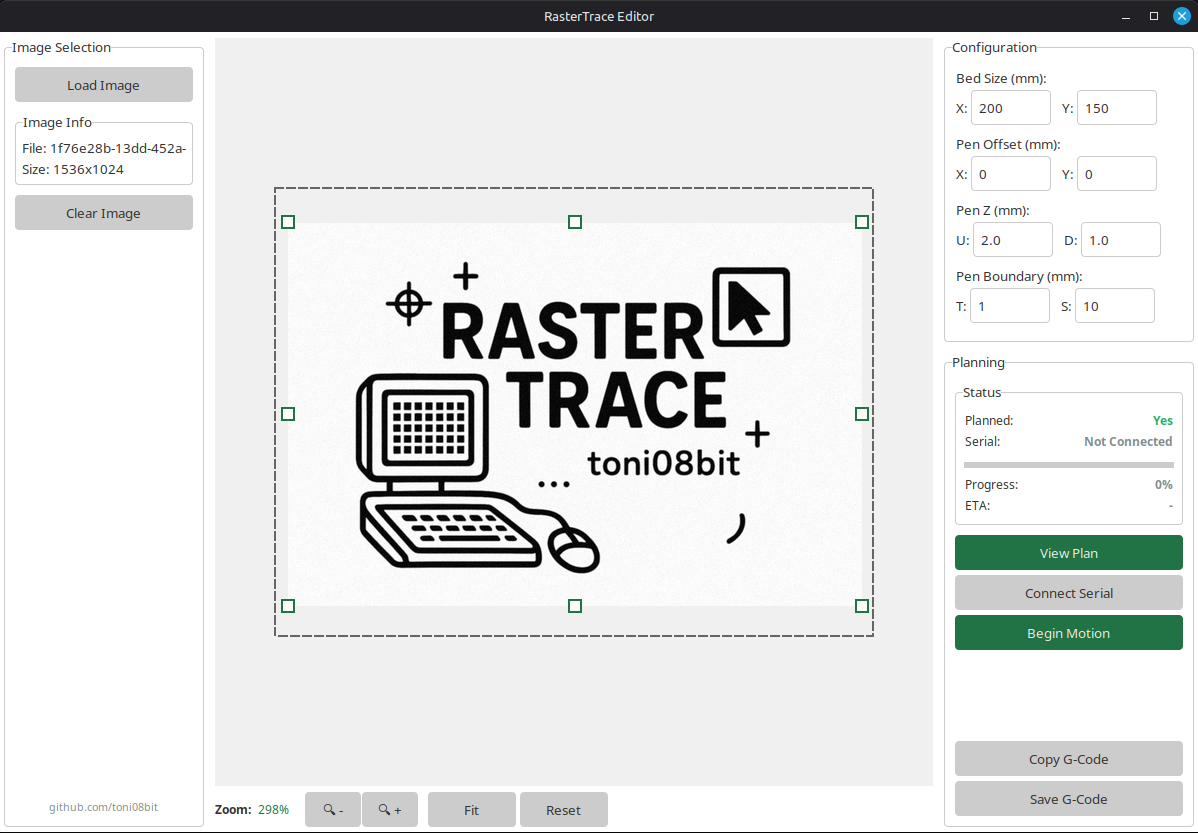
 RasterTrace Editor converts raster images into G-code for pen plotting on any G-code-compatible device – modified 3D printers, CNC machines, or dedicated plotters. Generate optimized toolpaths and stream them directly via USB while monitoring the process in real-time.
- Clean UI – Fast and easy to use interface
- Universal Image Support – Works with all common image formats (PNG, JPG, SVG, etc.)
- G-code Generation – Produces standardized G-code compatible with most machine firmwares
- Live Feeding – Monitor and control your machine in real-time with streamed G-Code instructions
- Path Optimization (WIP) – Finds the fastest possible way by minimizing airtime
Install the required dependencies to you environment using pip:
pip install -r requirements.txt- RasterTrace was tested on Python 3.12.
- A working install of Tkinter is required. Which should come pre-installed with modern python versions.
- Replace
requirements.txtwithlts-requirements.txt, which installs older versions of the dependencies which have been tested together.
-
After installing your environment and the required dependencies, enter the
srcdirectory and launchpython3 main.py. -
Enter you machine specifications in the top-right Configuration box.
| Option | Description |
|---|---|
| Bed Size (mm) | Dimensions of the machines bed/platform. (See manual) |
| Pen Offset (mm) | Offset from original tool (e. g. Nozzle) to Pen Tip.* |
| Pen Z (mm) | Up and Down z-position of the Pen. |
| Pen Boundary (mm) | Safe Margin from the edges of the bed.** |
*Only change if machine is modified. Set this in the machines firmware if permanent. **Content in the area will be clipped silently.
-
Select and Load your image in the top-left Image Selection box.
-
Move and Resize your image in the center Canvas area. The dotted lines represent the machine's bed size
-
Press Create Plan in the bottom-right and wait for the process to finish. Depending on bed size and image resolution this may take a minute.
-
In the same place, press View Plan to open a very rough preview of the result. The actual result usually looks way better.
-
There are two different options from this point. The recommended way is to connect your machine via USB to your computer. However, you may also press Save G-Code and flash it onto your machine in your own preferred way.
-
Press Connect Serial to check the USB connection to the machine. Having issues? Adjust the
SERIAL_PORTin the top section ofbackend.pyand restart the tool. -
Finally press Begin Motion, if everything is prepared.
RasterTrace Editor comes with a ttk-theme: Forest by rdbende This README.md was partly generated by an LLM. Made by toni08bit