The Medical Outlet Management System is a Java-based desktop application designed to manage the inventory, sales, companies, and user settings for a medical outlet. The application provides a user-friendly interface for managing various aspects of a medical store, including product inventory, sales transactions, company details, and user management.
- Inventory Management: Add, update, and remove products from the inventory.
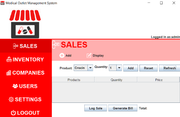
- Sales Management: Generate bills and manage sales transactions.
- Company Management: Add and manage company details, including representatives and products.
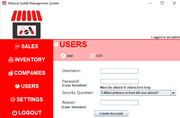
- User Management: Manage user accounts and permissions (admin-only feature).
- Settings: Configure system settings, such as the outlet name and address.
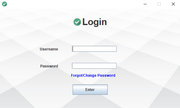
- Login System: Secure login system with password reset functionality.
- Java: Core programming language.
- Swing: For building the graphical user interface (GUI).
- SQLite: For database management.
- iTextPDF: For generating PDF bills.
Before running the application, ensure you have the following installed:
- Java Development Kit (JDK): Version 8 or higher.
- SQLite: For database management.
- Maven (optional): For dependency management.
- Clone the repository:
git clone https://github.com/Combust10/MedicalOutletManager.git
cd MedicalOutletManager/"Med Outlet"-
Set up the database: The application uses an SQLite database located at MedOut/Database.db. Ensure the database file is present and properly configured with the necessary tables (login, stock, company, etc.).
-
Run the application: Compile and run the Main.java file to start the application.
javac MedOut/*.java
java MedOut.Main- Launch the application and log in using your credentials.
- The default admin username is
admin.
- Use the sidebar to navigate between different sections:
- Sales: Manage sales transactions and generate bills.
- Inventory: Manage product inventory.
- Companies: Manage company details.
- Users: Manage user accounts (admin-only).
- Settings: Configure system settings (admin-only).
- Logout: Log out of the system.
- In the Sales section:
- Add products to the bill.
- Generate a PDF invoice for the transaction.
- In the Inventory section:
- Add Product: Enter product details (name, quantity, price) and add it to the inventory.
- Update Product: Modify the quantity or price of an existing product.
- Remove Product: Delete a product from the inventory.
- In the Companies section:
- Add Company: Enter company details (name, representative information, products, etc.).
- Update Company: Modify existing company details.
- Delete Company: Remove a company from the system.
- In the Users section:
- Add, update, or remove user accounts.
- Manage user permissions and roles.
- In the Settings section:
- Configure the outlet name, address, and other system settings.
- Toggle full-screen mode or other display preferences.
- Click the Logout button in the sidebar to securely log out of the system.