A user can view the calculator in Standard mode. A user can view the calculator in Scientific mode. A user can toggle between the Scientific and Standard Views. The system should change the color of the button when the user hovers the mouse over the button. Beyond that, the app should function in the way any calculator should, with each button outputting its particular symbol to the output field. All standard and scientific mathematical operations should work as expected. The app must use redux to handle state. It must be unit tested.


BR01: "A user can view the calculator in Standard mode. A user can view the calculator in Scientific mode. A user can toggle between the Scientific and Standard Views."
-
F01: Allow user to view calculator in Standard mode.
- I01: Current Mode
- I02: Standard Button Set
-
F02: Allow user to view calculator in Scientific mode.
- I01: Current Mode
- I02: Standard Button Set (subset of Scientific)
- I03: Scientific Button Set
-
F03: Allow toggling between modes.
- I01: Current Mode
- I02: Standard Button Set
- I03: Scientific Button Set
- I04: Selected element
- I05: Display dimensions
- I06: Device / screen size
- I07: Button size
- I08: Field size
- I09: Text type (link / string)
BR02: "The system should change the color of the button when the user hovers the mouse over the button."
-
FR04: Change button color when under cursor
- I04: Selected element
- I10: Cursor location
- I11: Button color
-
FR05: Revert button color when not hovered over
- I10: Cursor location
- I11: Button color
BR03: "Beyond that, the app should function in the way any calculator should, with each button outputting its particular symbol to the output field."
-
FR06: Output symbol of selected button
- I04: Selected element
- I05: Clicked
- I12: Button value
-
FR07: Concatenate onto existing output, if there is any
- I04: Selected element
- I05: Clicked
- I12: Button value
- I13: Current output
-
FR08: The "=" button should trigger display of calculated answer
- I04: Selected element
- I05: Clicked
- I12: Button value ("=")
- I13: Current output
- I14: Numbers
- I15: Mathematical operators
- I16: Calculated answer
-
FR09: Adjacent numbers and "." should concatenate together (ex: '1' '2' = '12')
- I04: Selected element
- I05: Clicked
- I12: Button value ("0-9", ".")
- I13: Current output
- I14: Numbers
- I17: Decimal point
-
FR10 Once concatenated, numbers should be evaluated as numbers (ex: '12' becomes 12)
- I13: Current output
- I14: Numbers
- I17: Decimal point
-
FR11 Numbers surrounding "x" should be multiplied
- I04: Selected element
- I05: Clicked
- I12: Button value ("x")
- I13: Current output
- I14: Numbers
- I15: Mathematical operators ("x")
- I18: Number preceding operator
- I19: Number following operator
- I16: Calculated answer
-
FR12 Numbers surrounding "+" should be added
- I04: Selected element
- I05: Clicked
- I12: Button value ("+")
- I13: Current output
- I14: Numbers
- I15: Mathematical operators ("+")
- I18: Number preceding operator
- I19: Number following operator
- I16: Calculated answer
-
FR13 Numbers surrounding "÷" should be divided
- I04: Selected element
- I05: Clicked
- I12: Button value ("÷")
- I13: Current output
- I14: Numbers
- I15: Mathematical operators ("÷")
- I18: Number preceding operator
- I19: Number following operator
- I16: Calculated answer
-
FR14 Numbers surrounding "-" should be subtracted
- I04: Selected element
- I05: Clicked
- I12: Button value ("-")
- I13: Current output
- I14: Numbers
- I15: Mathematical operators ("-")
- I18: Number preceding operator
- I19: Number following operator
- I16: Calculated answer
-
FR15 The "%" sign should convert the number it follows into a decimal value based on the preceding number (Ex: 133 + 10% => 133 + 13.3)
- I04: Selected element
- I05: Clicked
- I12: Button value ("%")
- I13: Current output
- I14: Numbers
- I15: Mathematical operators ("%")
- I18: Number preceding operator
- I20: Last number before percentage operation
- I16: Calculated answer
-
FR16: When not preceded by a number, "-" should indicate the following number is negative (Ex: -12 + 24)
- I04: Selected element
- I05: Clicked
- I12: Button value ("-")
- I13: Current output
- I14: Numbers
- I15: Mathematical operators ("-")
- I18: Number preceding operator (absent)
- I19: Number following operator
- I16: Calculated answer
-
FR17: Operations between "()" should be done before those outside
- I04: Selected element
- I05: Clicked
- I12: Button value ("(", ")")
- I13: Current output
- I14: Numbers
- I15: Mathematical operators
- I21: Values following "("
- I22: Values preceding ")"
- I16: Calculated answer
-
FR18: "AC" should clear the calculator output
- I04: Selected element
- I05: Clicked
- I12: Button value ("AC")
- I13: Current output
-
FR19: Misplaced operators should result in an error replacing the output (Ex: 10 * + 12 => "Error")
- I04: Selected element
- I05: Clicked
- I12: Button value
- I13: Current output
- I14: Numbers
- I15: Mathematical operators
- I18: Number preceding operator
- I19: Number following operator
- I16: Calculated answer
-
F20: If an error is present, next button press should function as if output field is empty
- I23: Error
- I04: Selected element
- I05: Clicked
- I12: Button value
-
F21: Pressing the Rad | Deg button will toggle the calculator between measuring radians and degrees
- I04: Selected element
- I05: Clicked
- I12: Button value ("Rad | Deg")
- I24: Current setting (Rad or Deg)
-
F22: Pressing the Inv key indicates the inverse value of the following number should be calculated
- I04: Selected element
- I05: Clicked
- I12: Button value ("Inv")
- I13: Current output
- I14: Numbers
- I15: Mathematical operators ("Inv")
- I19: Number following operator
- I25: x^-1
- I16: Calculated answer
-
F23: Pressing the π key outputs "π" (equivalent to 3.1415 etc)
- I04: Selected element
- I05: Clicked
- I12: Button value ("π")
- I13: Current output
- I26: Value of π
-
F24: Pressing the e key will outputs e (equivalent to Euler's number, approximately 2.71828)
- I04: Selected element
- I05: Clicked
- I12: Button value ("e")
- I13: Current output
- I27: Value of e
-
F25: Pressing the Ans key will insert the previous calculated answer into the output field
- I04: Selected element
- I05: Clicked
- I12: Button value ("Ans")
- I16: Calculated answer
- I28 Previous calculated answer
-
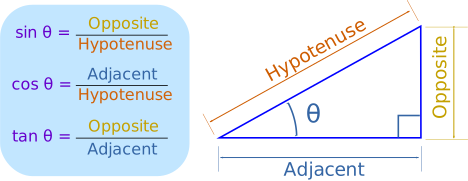
F26: Pressing the sin key indicates the Sine value of the following number should be calculated.
- I04: Selected element
- I05: Clicked
- I12: Button value ("sin")
- I13: Current output
- I14: Numbers
- I15: Mathematical operators ("sin")
- I19: Number following operator
- I29: Opposite value
- I30: Hypotenuse value
- I16: Calculated answer
-
F27: Pressing the cos key indicates the Cosine value of the following number should be calculated.
- I04: Selected element
- I05: Clicked
- I12: Button value ("cos")
- I13: Current output
- I14: Numbers
- I15: Mathematical operators ("cos")
- I19: Number following operator
- I31: Adjacent value
- I30: Hypotenuse value
- I16: Calculated answer
-
F28: Pressing the tan key indicates the Tangent value of the following number should be calculated.
- I04: Selected element
- I05: Clicked
- I12: Button value ("tan")
- I13: Current output
- I14: Numbers
- I15: Mathematical operators ("tan")
- I19: Number following operator
- 29: Opposite value
- I31: Adjacent value
- I16: Calculated answer
-
F29: Pressing the EXP key indicates the following number should be a power of ten.
- I04: Selected element
- I05: Clicked
- I12: Button value ("EXP")
- I13: Current output
- I14: Numbers
- I15: Mathematical operators ("EXP")
- I19: Number following operator
- I32: 10^x
- I16: Calculated answer
-
F30: Pressing the x! key indicates the factorial of the preceding number should be calculated (Ex: 5! = 5 _ 4 _ 3 _ 2 _ 1 = 120)
- I04: Selected element
- I05: Clicked
- I12: Button value ("x!")
- I13: Current output
- I14: Numbers
- I15: Mathematical operators ("x!")
- I19: Number following operator
- I16: Calculated answer
-
F31: Pressing the ln key indicates the natural logarithm of the following number should be calculated (Ex: ln(100) = 4.603170186)
- I04: Selected element
- I05: Clicked
- I12: Button value ("ln")
- I13: Current output
- I14: Numbers
- I15: Mathematical operators ("ln")
- I19: Number following operator
- I27: Value of e
- I16: Calculated answer
-
F32: Pressing the log key indicates the base logarithm of the following number should be calculated (Ex: log(100) = 2)
- I04: Selected element
- I05: Clicked
- I12: Button value ("log")
- I13: Current output
- I14: Numbers
- I15: Mathematical operators ("log")
- I19: Number following operator
- I16: Calculated answer
-
F33: Pressing the √ key will indicate the square root of the following number should be calculated
- I04: Selected element
- I05: Clicked
- I12: Button value ("√")
- I13: Current output
- I14: Numbers
- I15: Mathematical operators ("√")
- I19: Number following operator
- I16: Calculated answer
-
F34: Pressing the x^y key indicates the preceding number should be raised to the power of the following number.
- I04: Selected element
- I05: Clicked
- I12: Button value ("x^y")
- I13: Current output
- I14: Numbers
- I15: Mathematical operators ("x^y")
- I18: Number preceding operator
- I19: Number following operator
- I16: Calculated answer
- F35: All data must come from the store
- I01: Current Mode
- I02: Standard Button Set
- I03: Scientific Button Set
- I05: Display dimensions
- I07: Button size
- I08: Field size
- I09: Text type (link / string)
- I11: Button color
- I12: Button value
- I14: Numbers
- I15: Mathematical operators
- I17: Decimal point
- I33: File path
- F36: Jest unit tests must demonstrate that each function works as expected
- I34: Type of operation
- I35: Expected answer
- I36: Actual answer
- I37: Test status (success / failure)