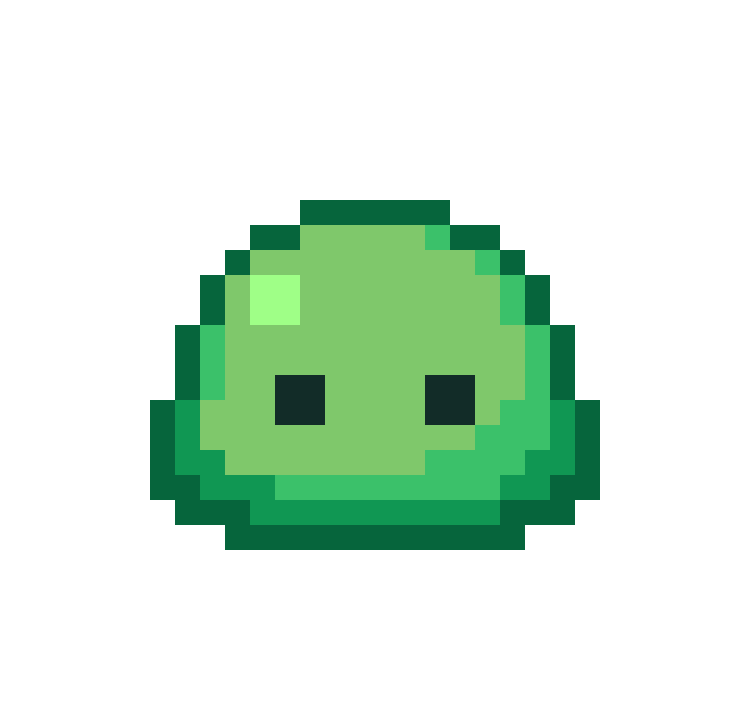
Converts noisy, high resolution pixel-art style images produced by generative models or sourced from low-quality web uploads to clean, true-resolution pixel-art assets.
Generative pixel-art style images are noisy and high resolution, often with a non-uniform grid and random artifacts. Standard downsampling techniques do not work. The current approach is to either use naive downscaling techniques or manually re-create the asset pixel by pixel.
This tool addressed both of these issues by automating the process of recovering true-resolution pixel-art assets.
- Install uv if not already installed.
- Clone the repository:
git clone git@github.com:KennethJAllen/proper-pixel-art.git
cd proper-pixel-art- Install dependencies:
uv syncAlternative: install as a package (without cloning)
With pip:
pip install proper-pixel-artWith uv:
uv add proper-pixel-artFirst, obtain a source pixel-art-style image (e.g. a pixel-art-style image generated by GPT-4o or a screenshot of pixel-art).
Opens a browser interface where you can upload an image and adjust settings interactively.
uv sync --extra web
uv run ppa-web
# Opens http://127.0.0.1:7860For users comfortable with the terminal.
uv run ppa <input_path> -o <output_path> -c <num_colors> -s <result_scale> [-t]| Option | Description |
|---|---|
| INPUT (positional) | Source file in pixel-art-style |
-o, --output <path> |
Output directory or file path for result. (default: '.') |
-c, --colors <int> |
Number of colors for output (1-256). Omit to skip quantization and preserve all colors. May need to try a few different values. (default None) |
-s, --scale-result <int> |
Width/height of each "pixel" in the output. (default: 1) |
-t, --transparent <bool> |
Output with transparent background. (default: off) |
-u, --initial-upscale <int> |
Initial image upscale factor. Increasing this may help detect pixel edges. (default 2) |
-w, --pixel-width <int> |
Width of the pixels in the input image. If not set, it will be determined automatically. (default: None) |
uv run ppa assets/blob/blob.png -c 16 -s 20 -tFor Python developers who want to integrate this tool into their own code.
from PIL import Image
from proper_pixel_art.pixelate import pixelate

image = Image.open('path/to/input.png')
result = pixelate(image, num_colors=16)
result.save('path/to/output.png')-
image:PIL.Image.Image- A PIL image to pixelate.
-
num_colors:int | None- The number of colors in result (1-256). Omit to skip quantization and preserve all colors.
- May need to try a few values if the colors don't look right.
- 8, 16, 32, or 64 typically works for quantized output.
-
initial_upscale:int- Upscale initial image. This may help detect lines.
-
scale_result:int- Upscale result after algorithm is complete if not None.
-
transparent_background:bool- If True, flood fills each corner of the result with transparent alpha.
-
intermediate_dir:Path | None- Directory to save images visualizing intermediate steps of algorithm. Useful for development.
-
pixel_width:int | None- Width of the pixels in the input image. If not set, it will be determined automatically. It may be helpful to increase this parameter if not enough pixel edges are being detected.
A PIL image with true pixel resolution and quantized colors.
These options are for power users who want to run the tool without cloning the repository.
uvx --from "proper-pixel-art[web]" ppa-webuvx --from "proper-pixel-art" ppa <input_path> -o <output_path> -c <num_colors> -s <result_scale> [-t]The algorithm is robust. It performs well for images that are already approximately alligned to a grid.
Here are a few examples. A mesh is computed, where each cell corresponds to one pixel.
- Generated by GPT-4o.
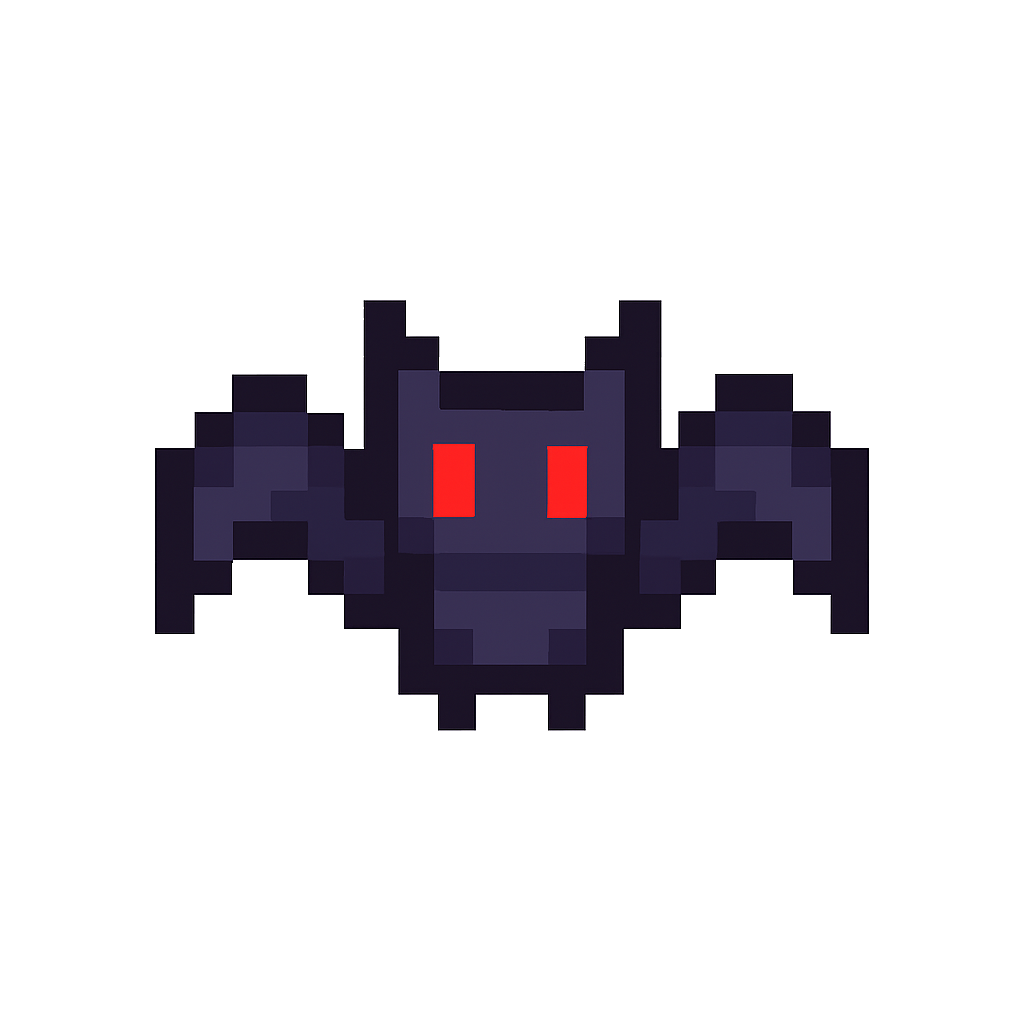
Noisy, High Resolution |
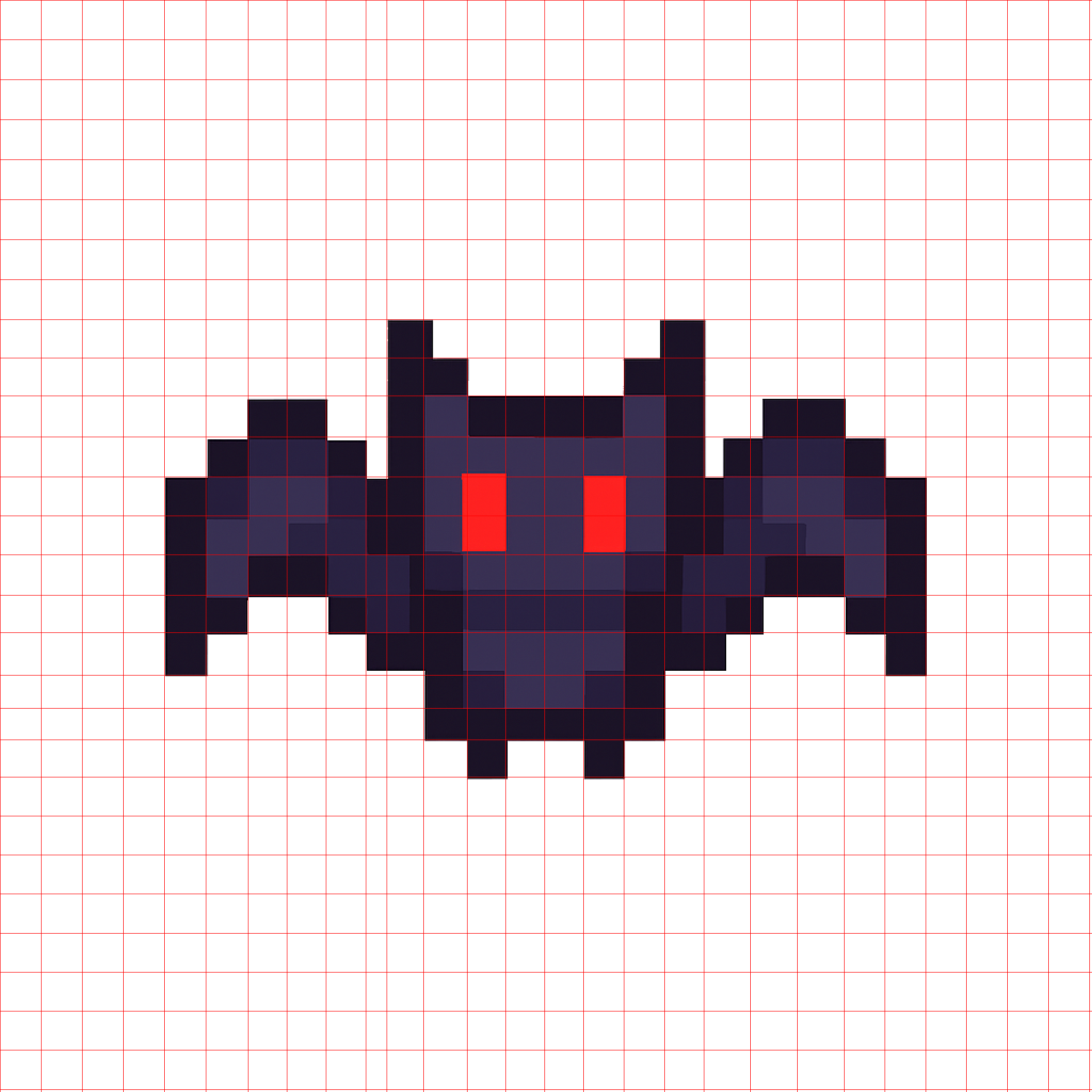
Mesh |

True Pixel Resolution |
- Screenshot from Google images of Pokemon asset.
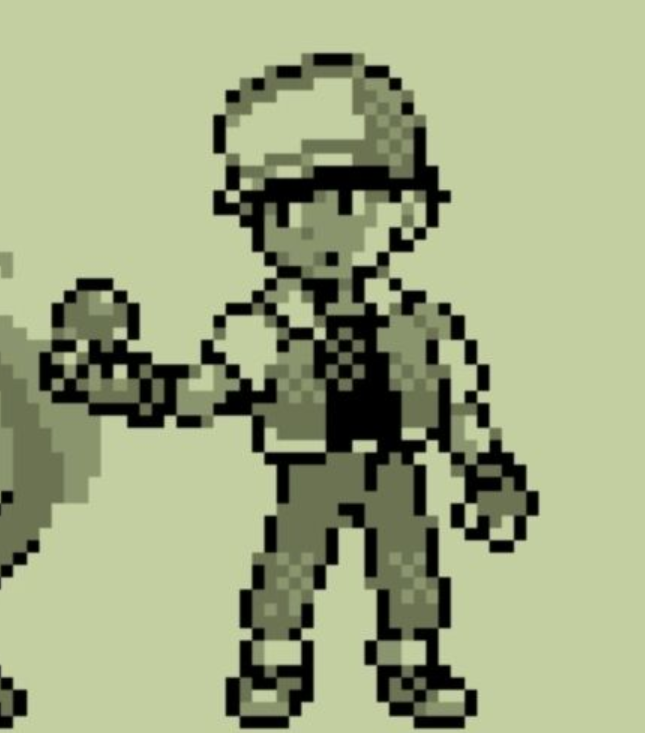
Noisy, High Resolution |
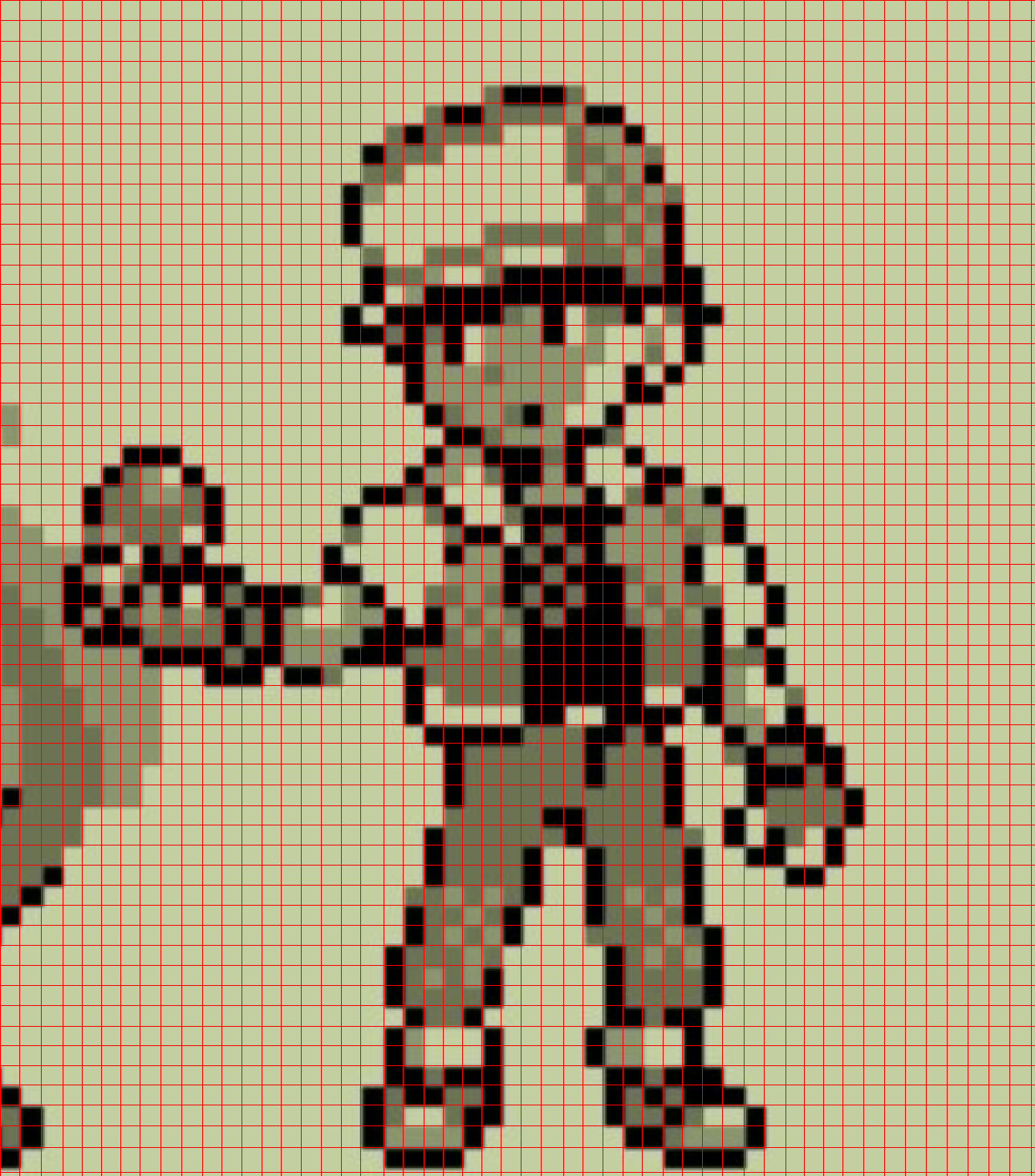
Mesh |
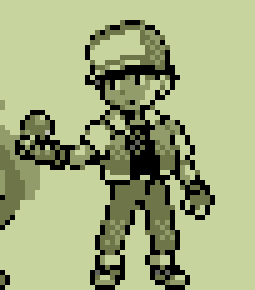
True Pixel Resolution |
- Original image generated by GPT-4o.
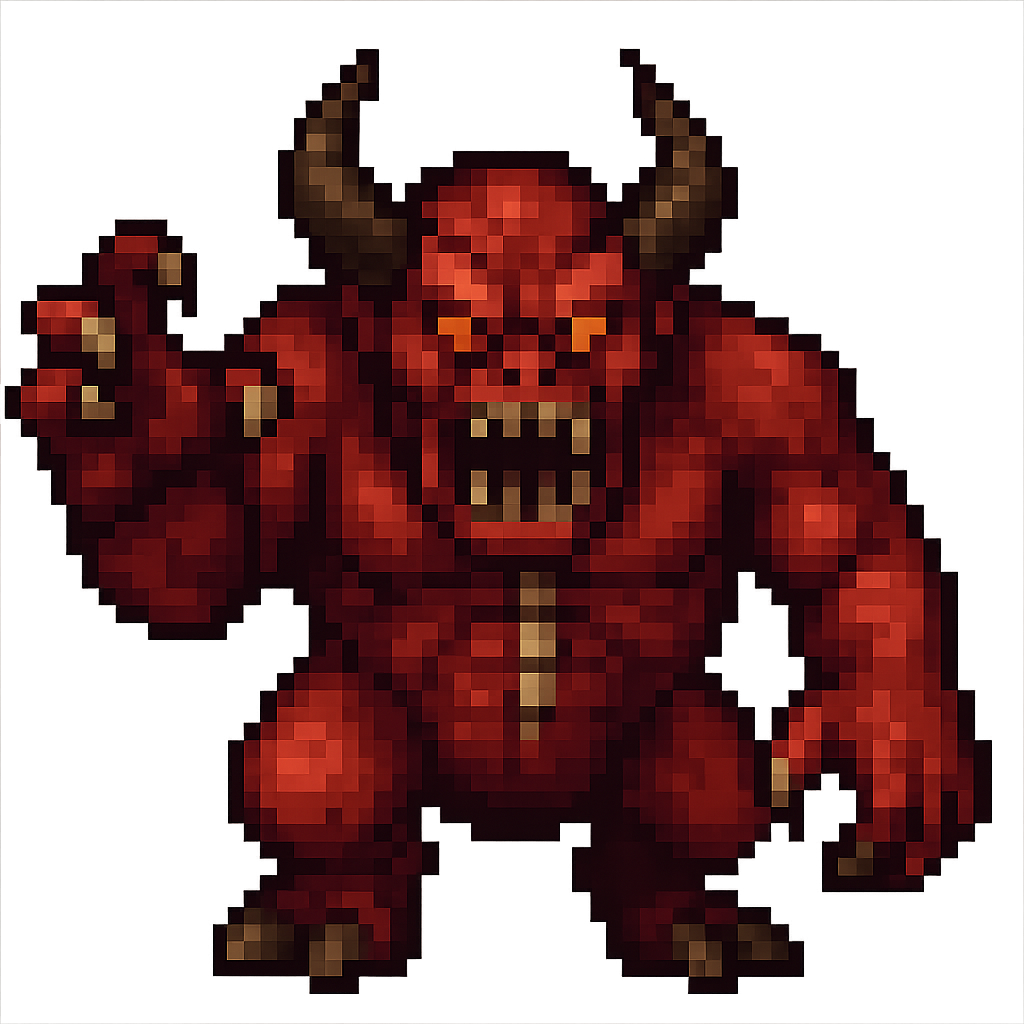
Noisy, High Resolution |
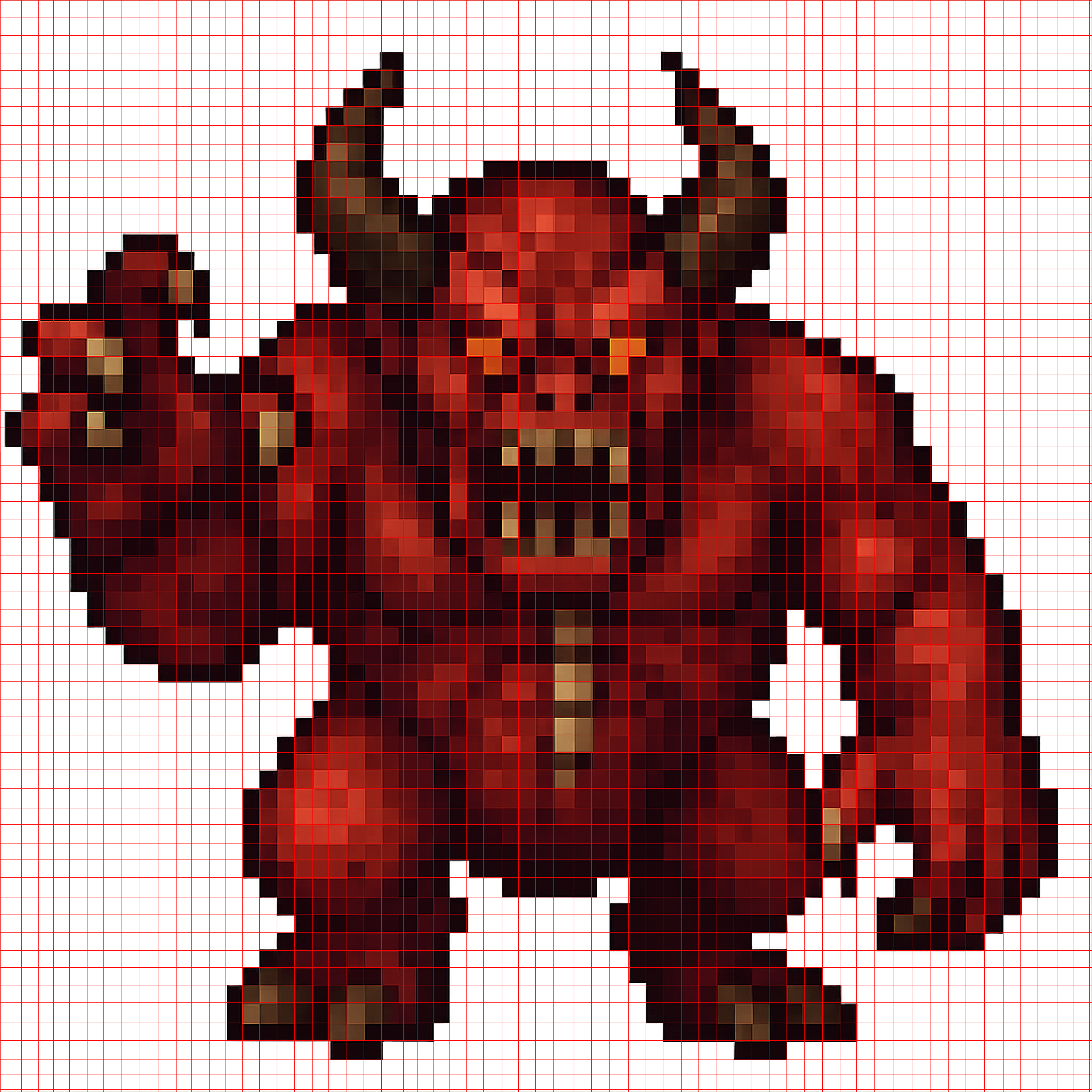
Mesh |
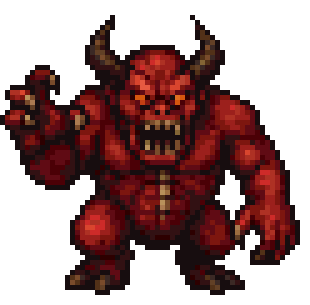
True Pixel Resolution |
- Screenshot from Google Images of Stardew Valley asset. This is an adversarial example as the source image is both low quality and the object is round.
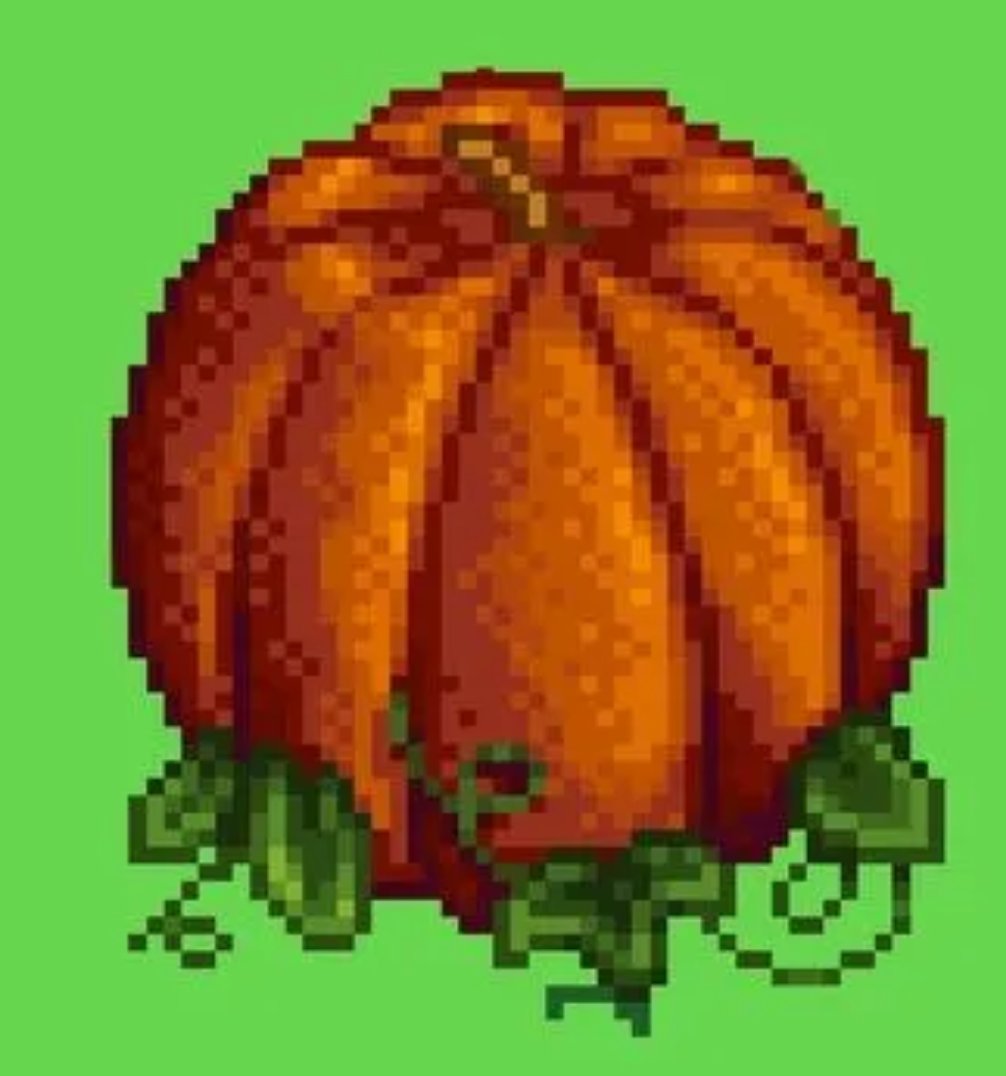
Noisy, High Resolution |
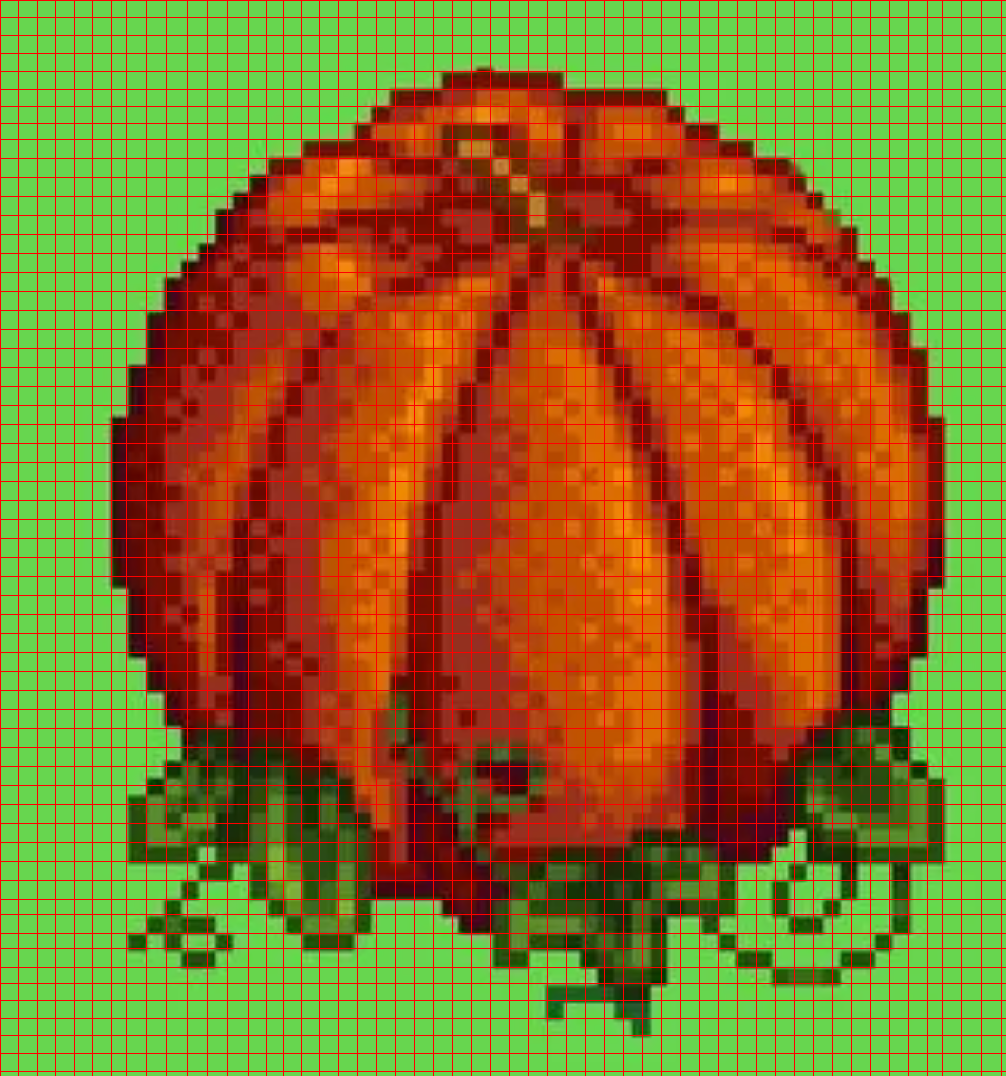
Mesh |
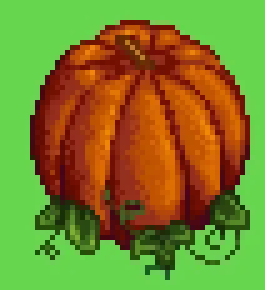
True Pixel Resolution |
-
This tool can also be used to convert real images to pixel art by first requesting a pixelated version of the original image from GPT-4o, then using the tool to get the true pixel-resolution image.
-
Consider this image of a mountain
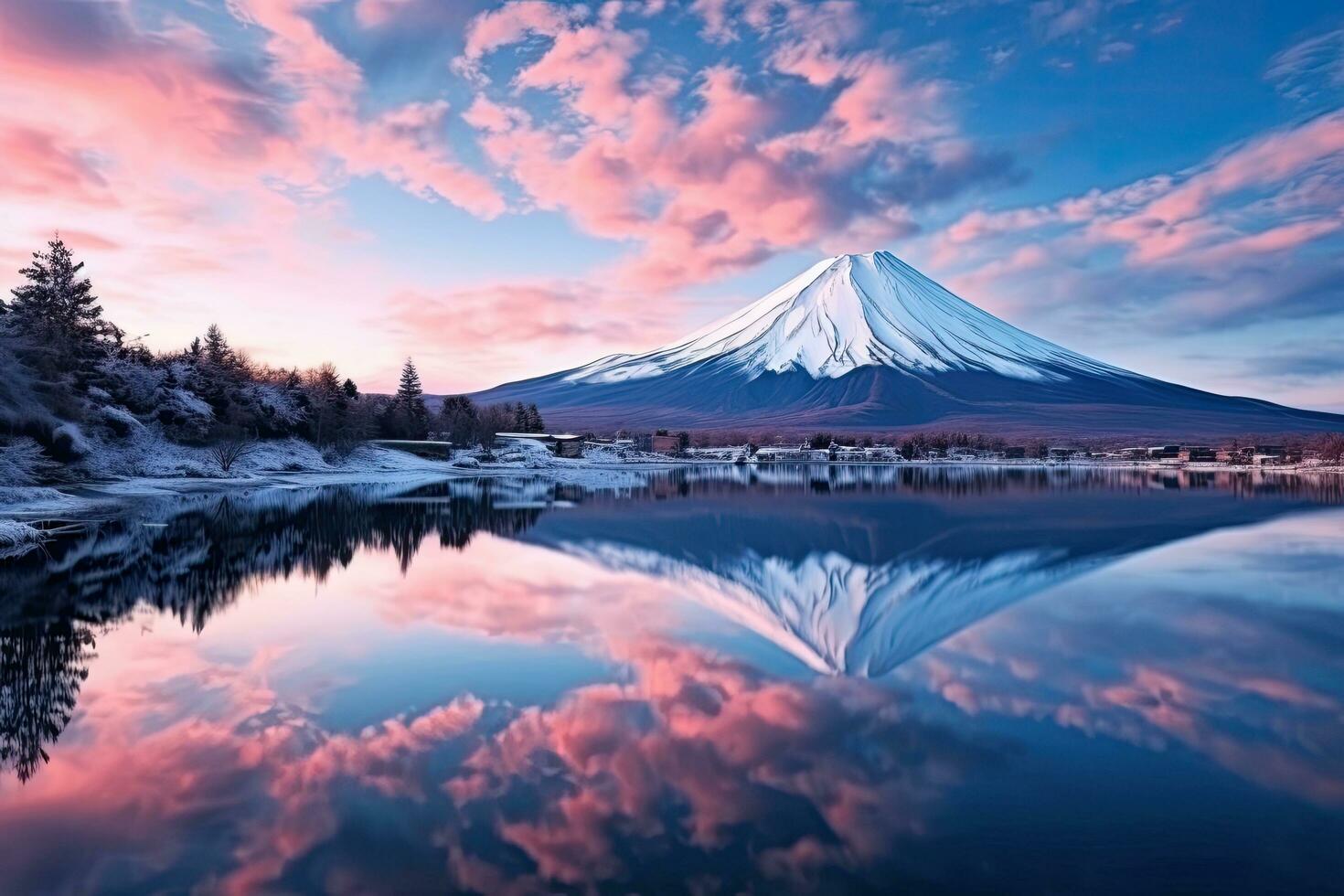
- Here are the results of first requesting a pixelated version of the mountain, then using the tool to get a true resolution pixel art version.
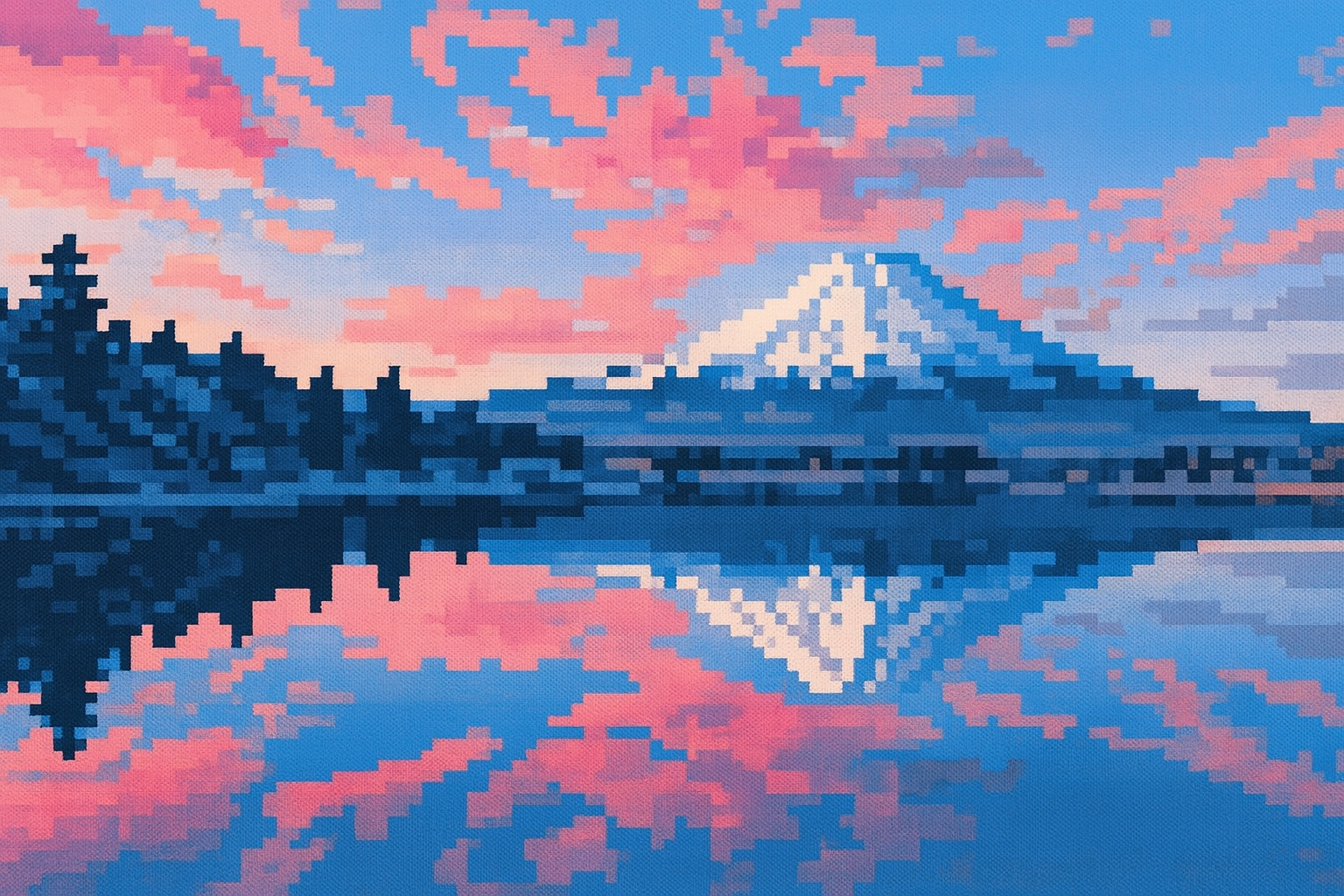
Noisy, High Resolution |
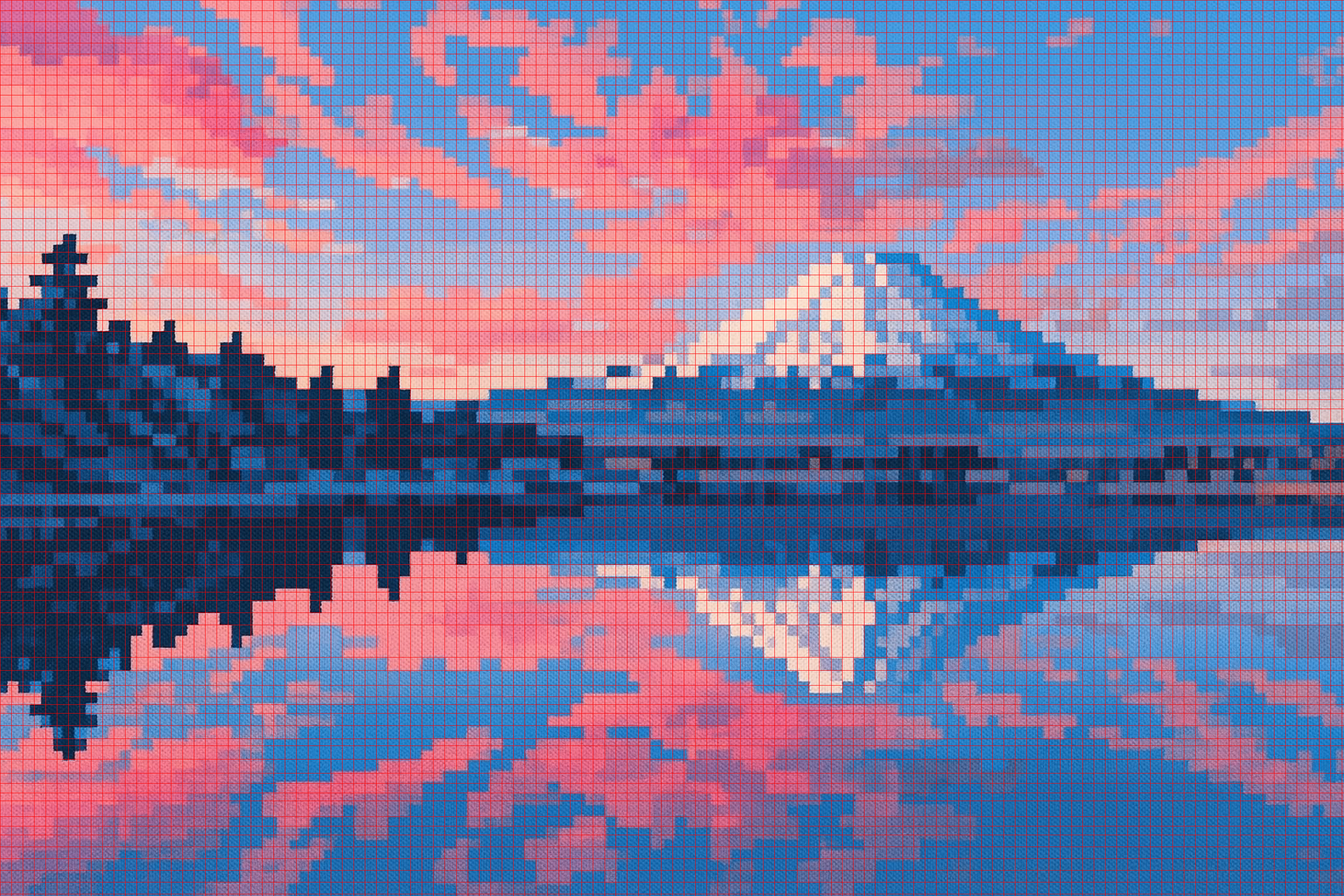
Mesh |
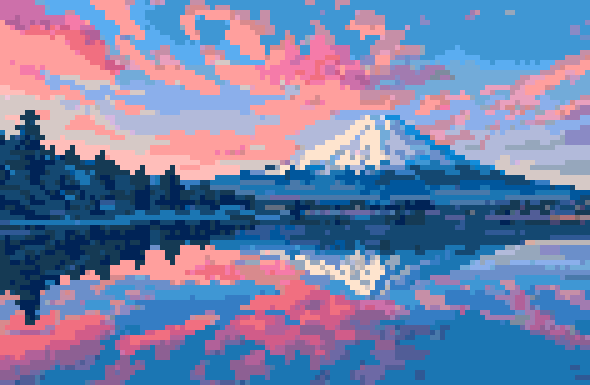
True Pixel Resolution |
- The main algorithm solves these challenges. Here is a high level overview. We will apply it step by step on this example image of blob pixel art that was generated from GPT-4o.
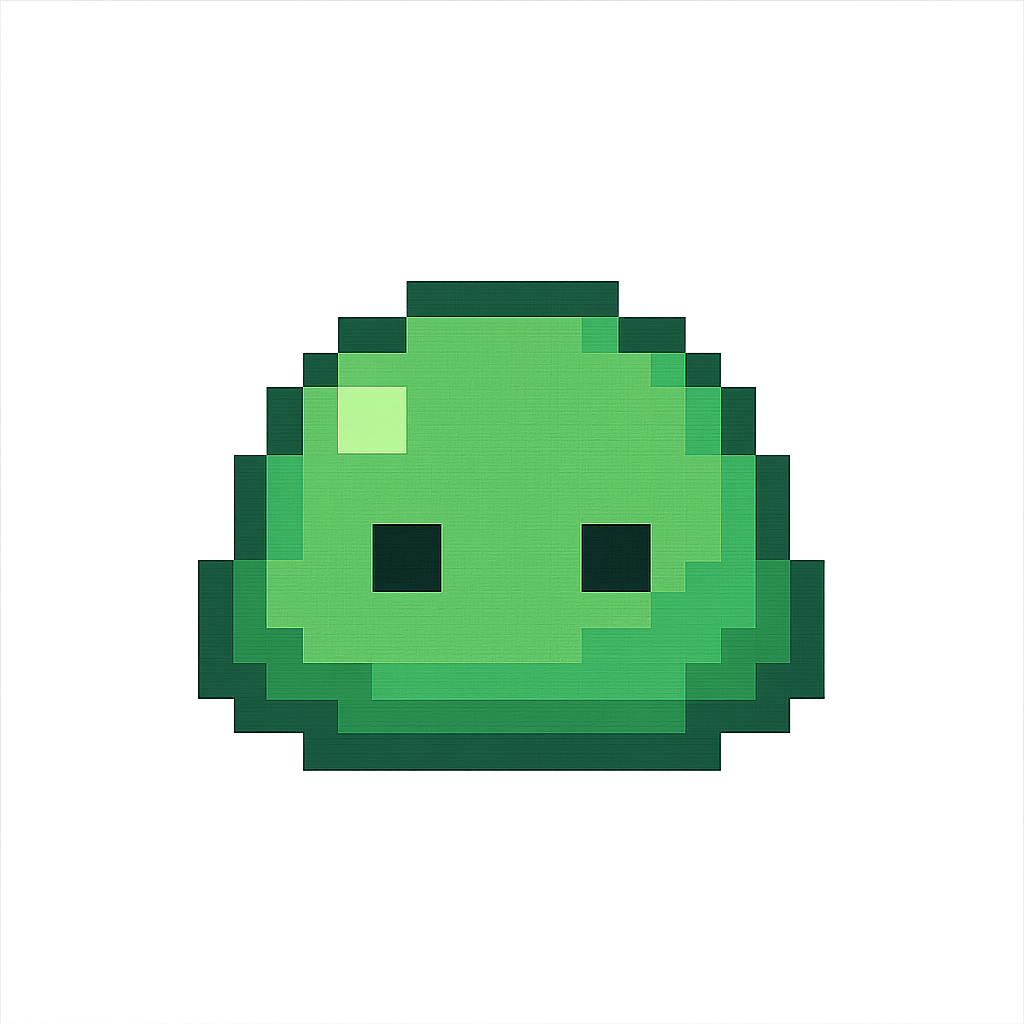
- Note that this image is high resolution and noisy.
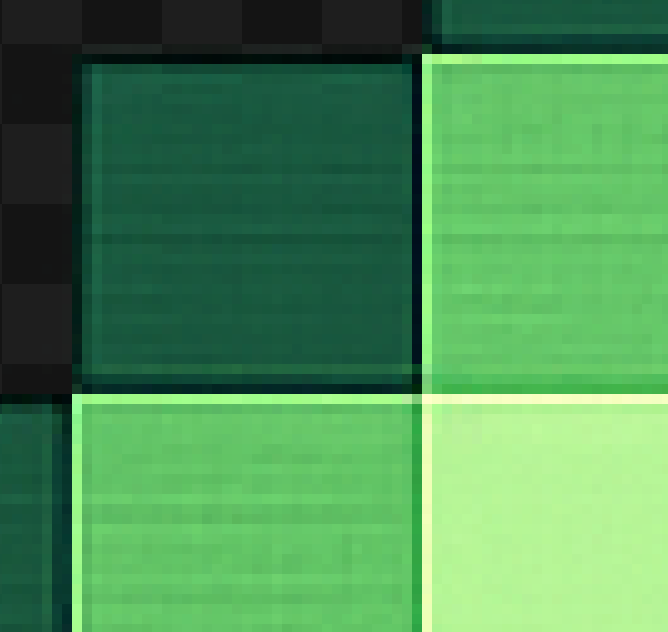
-
Trim the edges of the image and zero out pixels with more than 50% alpha.
- This is to work around some issues with models such as GPT-4o not giving a perfectly transparent background.
-
Upscale by a factor of 2 using nearest neighbor.
- This can help identify the correct pixel mesh.
-
Find edges of the pixel art using Canny edge detection.
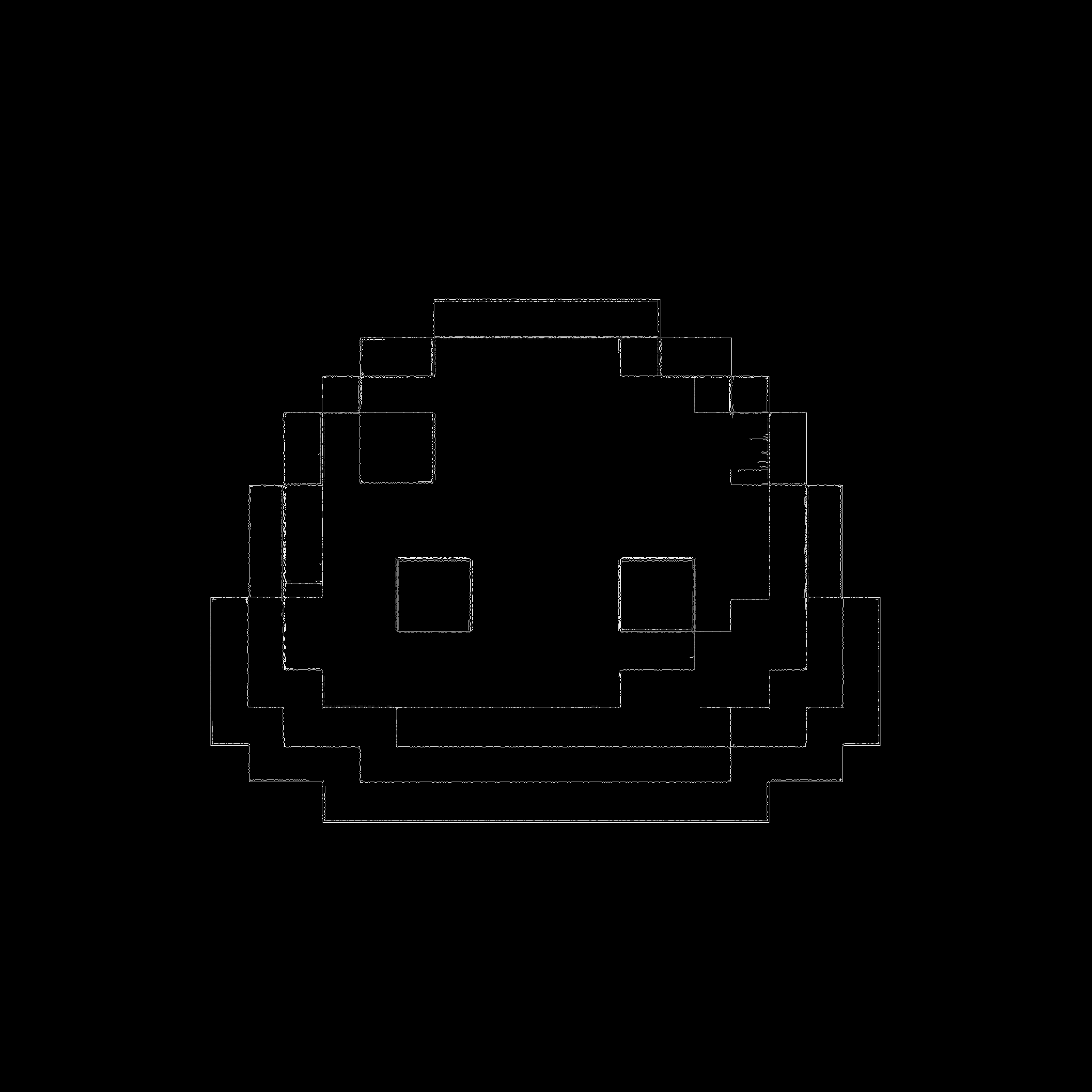
- Close small gaps in edges with a morphological closing.
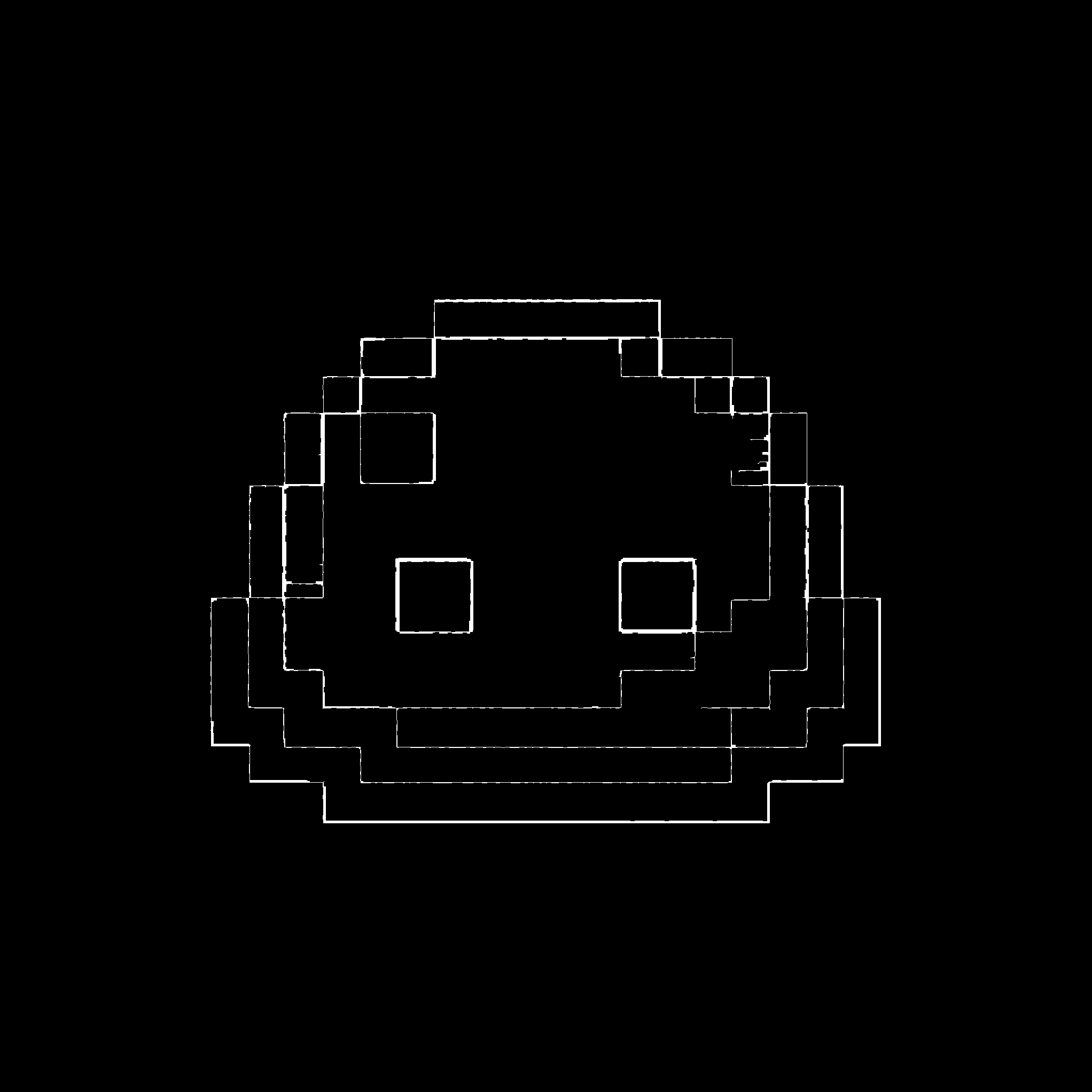
- Take the probabilistic Hough transform to get the coordinates of lines in the detected edges. Only keep lines that are close to vertical or horizontal giving some grid coordinates. Cluster lines that are closeby together.
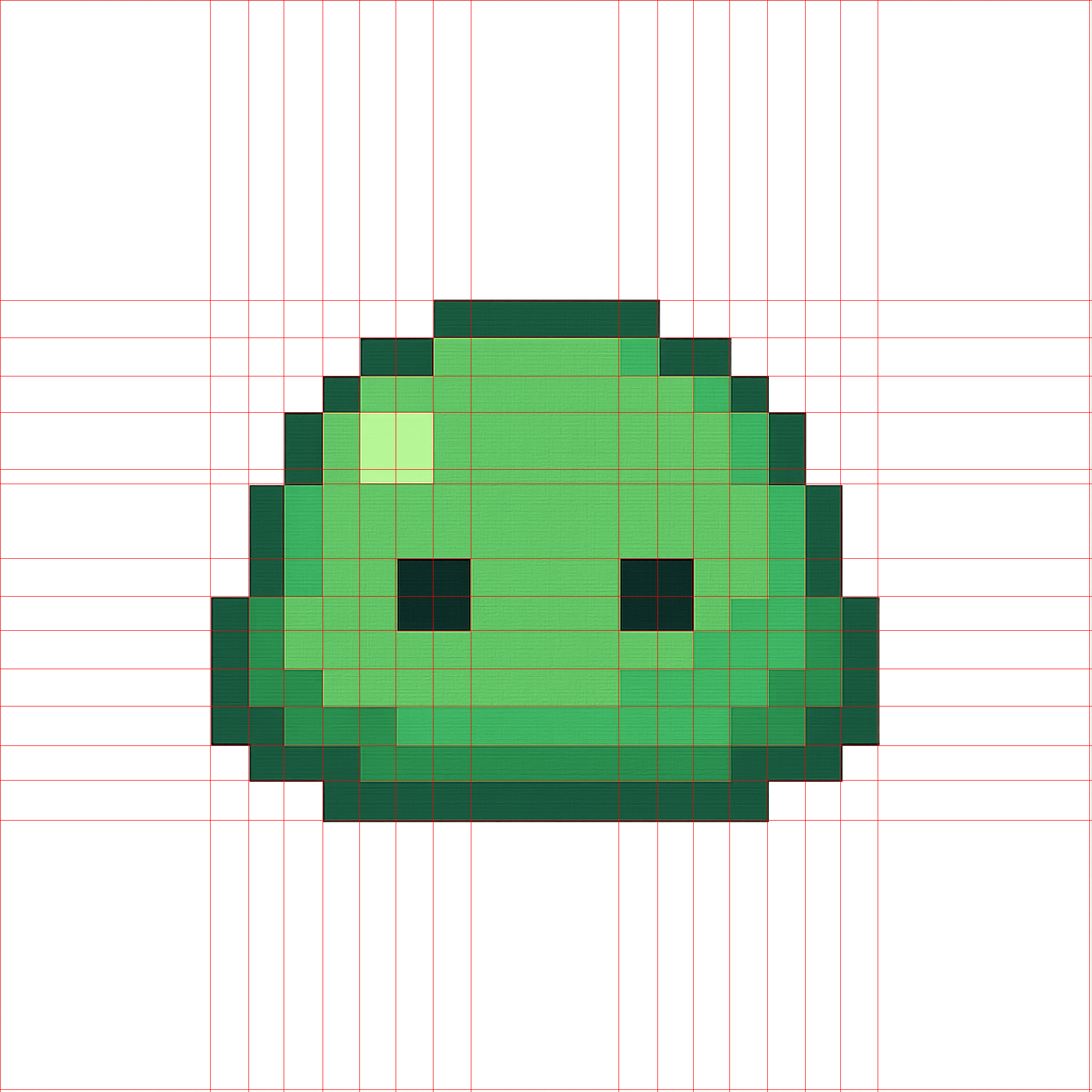
- Find the grid spacing by filtering outliers and taking the median of the spacings, then complete the mesh.
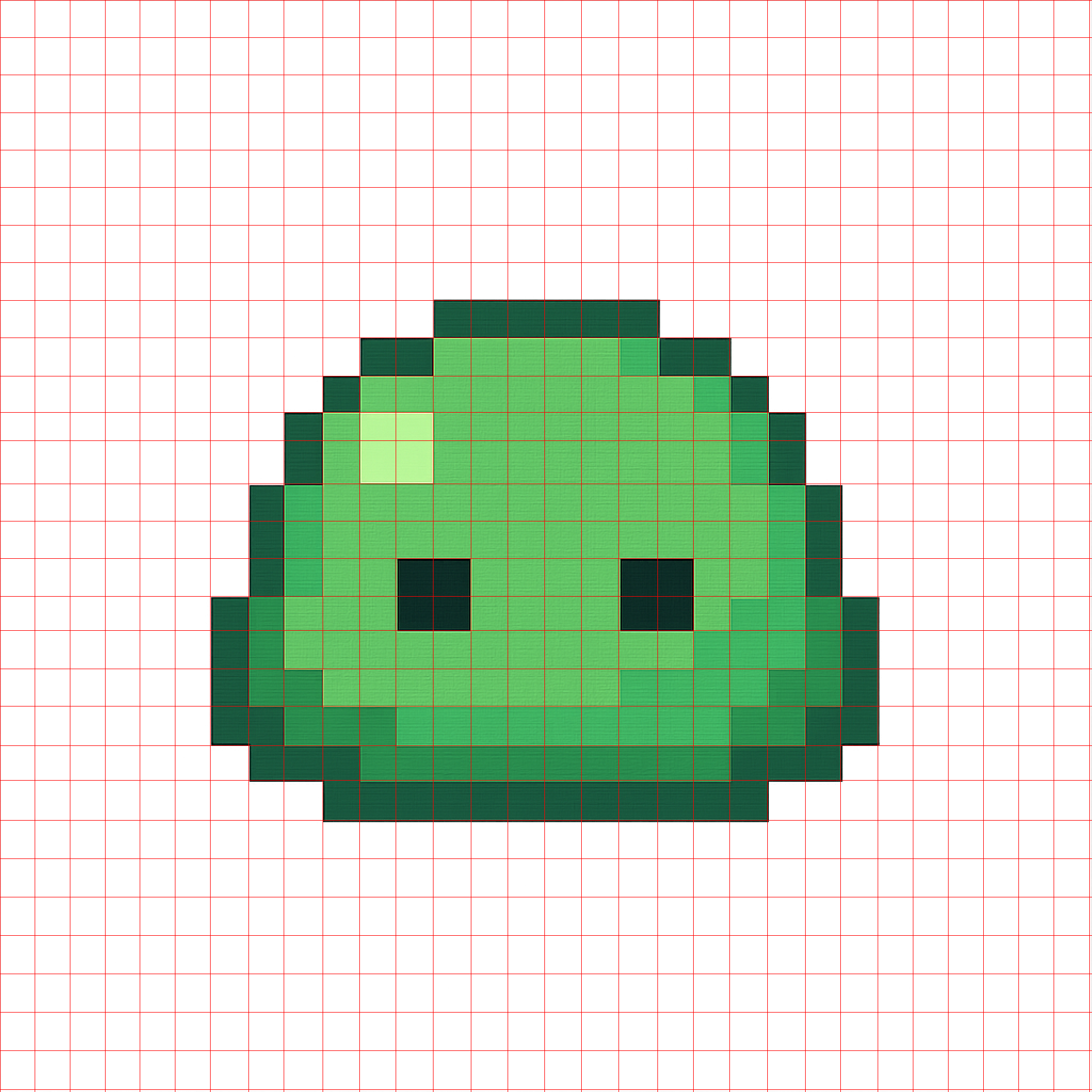
-
Quantize the original image to a small number of colors.
- Note: The result is sensitive to the number of colors chosen.
- The parameter is not difficult to tune, but the script may need to be re-run if the colors don't look right.
- 8, 16, 32, or 64 typically works.
-
In each cell specified by the mesh, choose the most common color in the cell as the color for the pixel. Recreate the original image with one pixel per cell.
- Result upscaled by a factor of
$20 \times$ using nearest neighbor.
- Result upscaled by a factor of