Releases: LetPeopleWork/Lighthouse
Lighthouse v26.6.16.14

bda7068 huserben
Benjamin Huser-Berta
huserben
Benjamin Huser-Berta
Bugfixes and Improvements
- Blackout periods no longer skew forecasts — changing a team's or portfolio's blackout configuration now refreshes the cached metrics straight away, so a forecast reflects your current non-working-day settings instead of a stale calculation. Previously, toggling blackout days could leave the When? forecast showing results from before the change. Reported by Chris Graves.
- Updated various third-party libraries.
Contributions ❤️
Special thanks to everyone who contributed feedback for this release:
Lighthouse v26.6.11.3
Cycle Time, Your Way — Multiple Named Cycle Times (Premium)
The default cycle time runs from work started to work finished. But that's rarely the only span worth watching. You might want Concept to Cash end-to-end, or deliberately a slice that excludes stages outside your control. You can now define named cycle times — give a name to any start→end pair across your workflow states — and switch between them right on the Cycle Time Scatterplot with a combobox, at both Team and Portfolio level.
The same named window also re-scopes the Cumulative Time per State chart, so you can analyse where work spends its time inside exactly the span you care about, not just the default one.
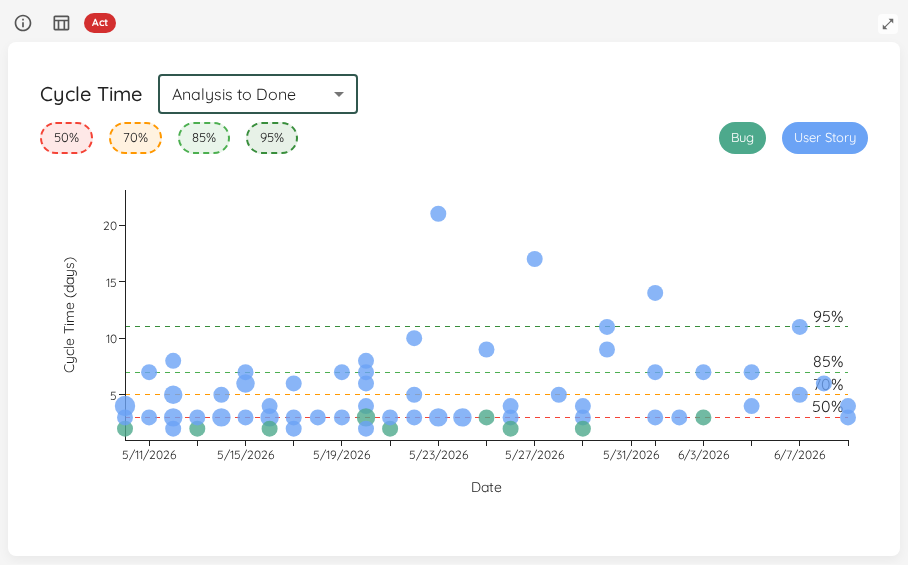
Define them under Named Cycle Times and read how scoping works in Scope to a Named Cycle Time.
How Long Has In-Progress Work Been Ageing? — Work Item Age Percentiles
Cycle Time percentiles tell you how long finished work took. They say nothing about the items still on your board today. This release adds a Work Item Age Percentiles overview widget that shows the 50th, 70th, 85th, and 95th percentiles of Work Item Age across the items currently in progress — a live snapshot of how long your work has been ageing right now, at both Team and Portfolio scope.
A matching selector on the Work Item Aging chart lets you draw either Cycle Time or Work Item Age reference lines behind your in-progress items, so you can compare today's ageing against either yardstick.
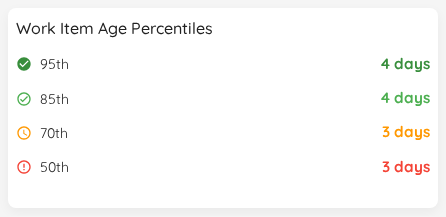
See the Work Item Age Percentiles widget.
Bugfixes and Improvements
- Cumulative Time per State now reads in days — the chart no longer blows up into unwieldy hour or minute figures; its display unit is capped at days so the bars stay readable at a glance. Reported by Gonzalo Mendez.
- Staleness off by default for new teams and portfolios — newly created teams and portfolios no longer start with a staleness threshold enabled. You now opt into stale-item flagging when you want it, instead of having it on from day one.
- Updated various third-party libraries.
Contributions ❤️
Special thanks to everyone who contributed feedback for this release:
Lighthouse v26.6.7.1
2496b80
huserben
Benjamin Huser-Berta
Track a Delivery Over Time, Not Just Today
A delivery forecast tells you where you stand right now. What it never showed was the trend: are we closing in on the date, or quietly slipping? This release adds a Metrics tab to every delivery with three charts that build forward from the day the delivery is created.
- Burnup — total scope versus completed work over time, with a dashed Estimated line for the portion of scope that isn't broken down yet, so placeholder estimates are honest rather than hidden.
- Predictability — the forecast itself, tracked day by day. Flip between How Likely? (probability of hitting the target, against coloured confidence bands) and When? (the 50/70/85/95 percentile dates against the target).
- Fever chart — every feature plotted on a schedule-versus-confidence trail you can replay with a Run control, so a feature drifting into the red announces itself long before the target date.
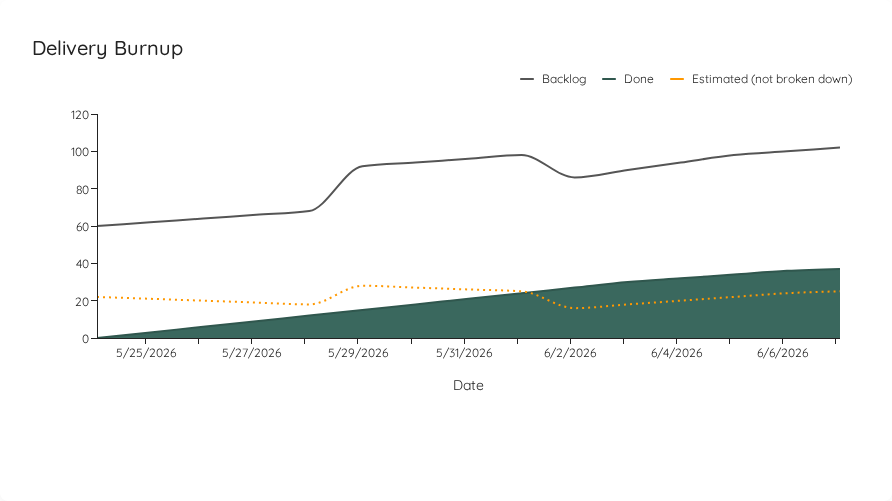
Honest charts when the target moves
Move a delivery's target date and the charts don't quietly rewrite history. The target is recorded as it was on each snapshot, so the target line steps on the day it changed and a marker highlights the change — a jump in likelihood is clearly attributable to a moved goal, not to imaginary progress.
See Delivery Metrics over Time for the full walkthrough.
Wait States & Flow Efficiency
Not all Doing time is active work — some of it is waiting: queued behind a person, parked in a review column, sitting through a hand-off. You can now mark which states count as wait states in your team or portfolio settings, and Lighthouse turns that into Flow Efficiency: the share of time work spends actively progressing versus waiting.
It surfaces as a dedicated Flow Overview tile and as a headline figure on the Cumulative Time per State chart, where the waiting bars are highlighted so the cost of queues is impossible to miss.
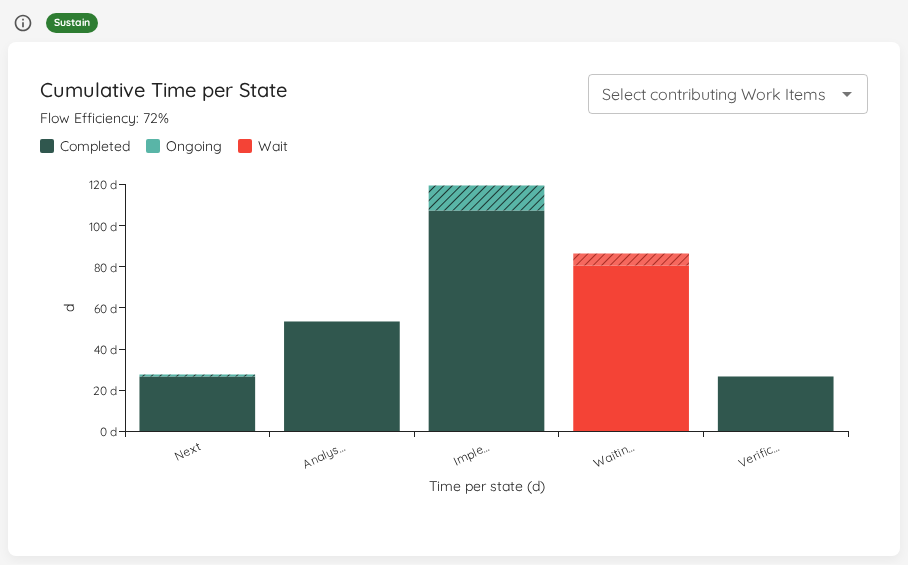
Configure it under Wait States and read the metric details on the Flow Efficiency widget.
Forecasts That Respect Your Non-Working Days
Blackout periods already kept non-working days out of your throughput. Now they also shape the dates forecasts land on: a forecast of N working days steps its predicted calendar date over any known upcoming blackout days — weekends, holidays, planned shutdowns — instead of pretending work happens on days nobody is working. This applies across the When forecast, feature and delivery dates, and the value written back to your work tracker.
Recurring Blackout Rules (Premium)
Entering every weekend by hand was never going to scale. You can now define recurring blackout rules — pick the weekdays, a repeat every N weeks cadence, a start date and an optional open end — and Lighthouse expands them into the concrete non-working days automatically. One-off periods and recurring rules live together in the same settings section and feed forecasting and metrics identically.
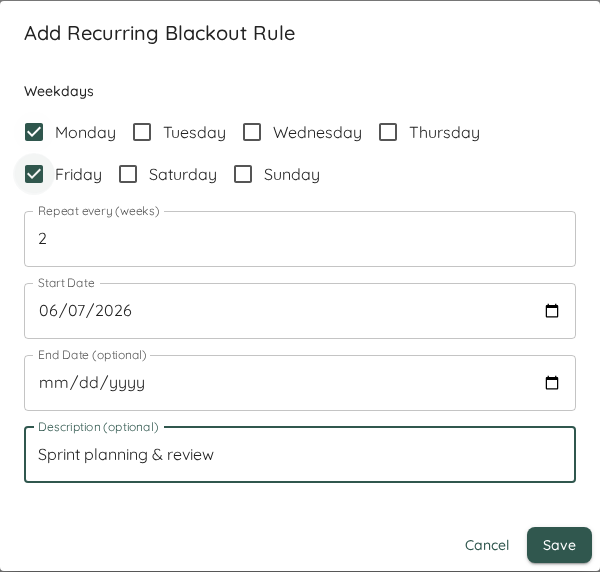
See Blackout Periods & Recurring Rules.
Bugfixes and Improvements
- Never show 100% confidence — forecast likelihoods are now capped at >95% on the manual, delivery, and portfolio forecasts. A Monte Carlo simulation can't honestly promise certainty, and showing "100%" invited exactly the wrong kind of trust. Reported by Liz Rettig.
- Don't forecast on too little data — when a team has fewer than five active days of throughput, Lighthouse now suppresses the forecast and tells you why instead of producing a confident-looking number built on almost nothing. Reported by Liz Rettig.
- Cumulative Time per State — hide Completed or Ongoing — a legend toggle lets you show only completed time, only ongoing time, or both, so you can isolate the part of the picture you care about.
- Load Balance Matrix aspect ratio — the matrix no longer stretches out of shape on wide screens; it keeps a square plotting area so the quadrants stay readable. Reported by Gonzalo Mendez.
- Updated various third-party libraries.
Contributions ❤️
Special thanks to everyone who contributed feedback for this release:
Lighthouse v26.5.29.5
d80888c
huserben
Benjamin Huser-Berta
See How Long Work Has Been Sitting — Time in State & Stale Items
Cycle Time tells you how long finished work took. It says nothing about the item that's been parked in Testing for three weeks right now. This release makes "how long has this been sitting here?" a first-class signal across Lighthouse.
- Time in State — every work item now shows how long it has been in its current state, directly in the team and portfolio work-item views.
- Staleness threshold — set a per-team and per-portfolio threshold (in days) under Flow Signals in your settings. Any in-progress item that has sat in its state longer than the threshold is flagged stale, and its Time-in-State indicator turns red so it stands out.
- Stale Items Overview — a new Flow Overview widget counts how many in-progress items are currently stale, with a RAG status that targets zero. Blocked items are deliberately excluded, so a single item is never double-counted as both blocked and stale.
To make this accurate, Lighthouse now captures the full state-transition history of your items from Azure DevOps, Jira, and Linear — plus an optional Current State Since column for CSV imports — so "time in state" is grounded in real transitions rather than a guess.
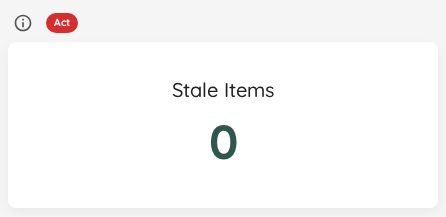
Cumulative Time per State
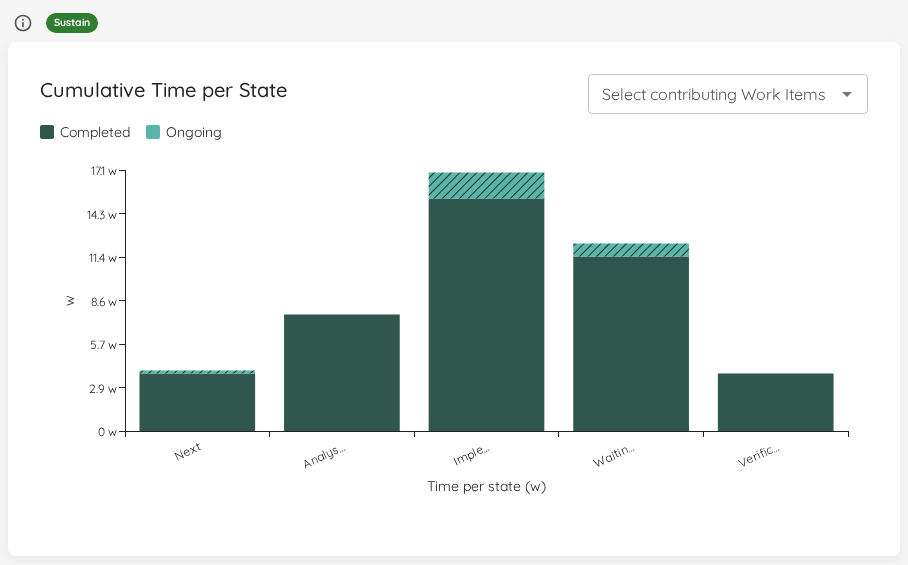
The new Cumulative Time per State chart (under Flow Metrics) shows where your work actually spends its time — the total days items have accumulated in each workflow state. Units adapt to the scale of the data, and you can click any bar to drill into exactly which work items contributed to it.
Need to focus? A built-in item picker scopes the chart to specific work items, so you can trace a single feature's journey through your process instead of reading the whole board at once.
Pace Percentile Bands on the Aging Chart
The Work Item Aging chart can now draw per-state pace-percentile bands behind your in-progress items. Each state column is shaded green at the floor to red at the top, derived from your own historical age-at-exit percentiles — so at a glance you can tell whether an item is aging within its normal range or running hot. Flip the bands on or off with a single chip; the choice is remembered across sessions.
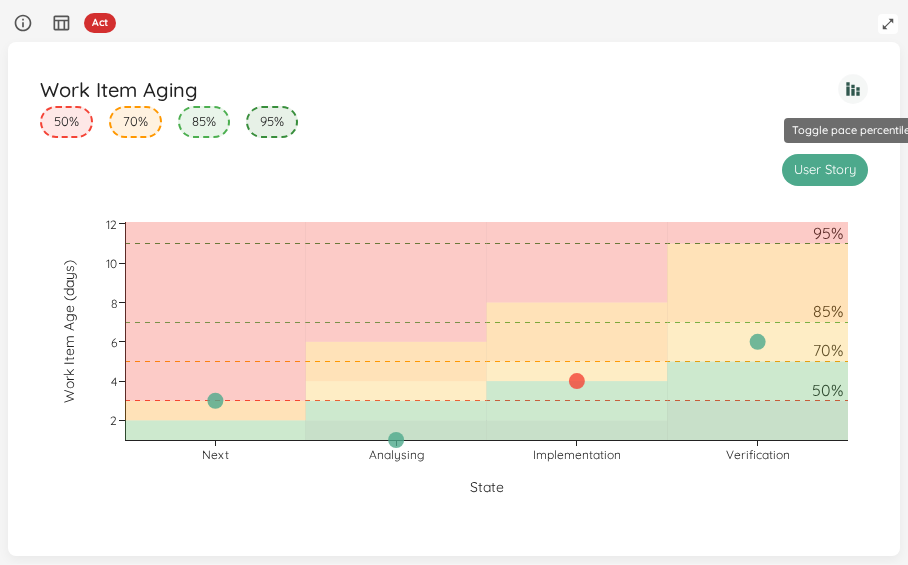
All three of these live alongside the rest of the Metrics widgets.
Save and Run — Without the Buttons
Editing a team or portfolio used to mean: make a change, then remember to hit Save. Forecasting meant filling in the inputs, then hitting Forecast or Run Backtest. This release removes that ceremony.
- Settings auto-save. General team and portfolio settings, state mappings, and the forecast filter now save automatically the moment your input is valid — no Save button. A quiet All changes saved indicator confirms it landed. Validation still runs first; invalid input is held back and shown to you instead of being saved.
- Forecasts auto-run. The New Item creation forecast and Backtesting now run on their own as soon as the inputs are valid — matching the How Many / When forecast that already worked this way. The Forecast and Run Backtest buttons are gone.
For the forecast filter, the expensive throughput recompute stays under your control: a rule edit saves silently, and a one-click Reload throughput now action recomputes when you're ready.
Bugfixes and Improvements
- Updated various third-party libraries.
Contributions ❤️
Special thanks to everyone who contributed feedback for this release:
Lighthouse v26.5.24.10
5251329
huserben
Benjamin Huser-Berta
Exclude Items for Throughput (Premium)
Does your team carry maintenance, support, or unplanned bug work alongside feature delivery? Until now that left you two options: live with throughput numbers polluted by interrupt work — and forecasts that are too optimistic — or split things into a "fake team" that doesn't actually exist in your tracker. Neither is great.
The new Exclude Items for Throughput rule lets you tell Lighthouse "don't count these": exclude by type, by parent reference, by tags, or any combination of conditions. The filter then flows through every forecast — How Many, When, and Backtesting — so the dates you commit to reflect the work your team actually does, not the noise around it.
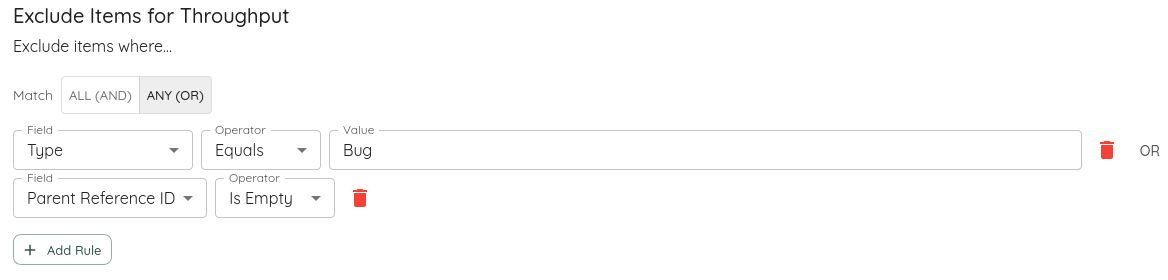
It's also a conversation tool. Want to show leadership how much faster you'd ship if the team could focus? Run When will this be done? against your raw throughput, then against the filtered throughput, and compare. You've always known the interrupt work matters — now you have the numbers to put behind it.
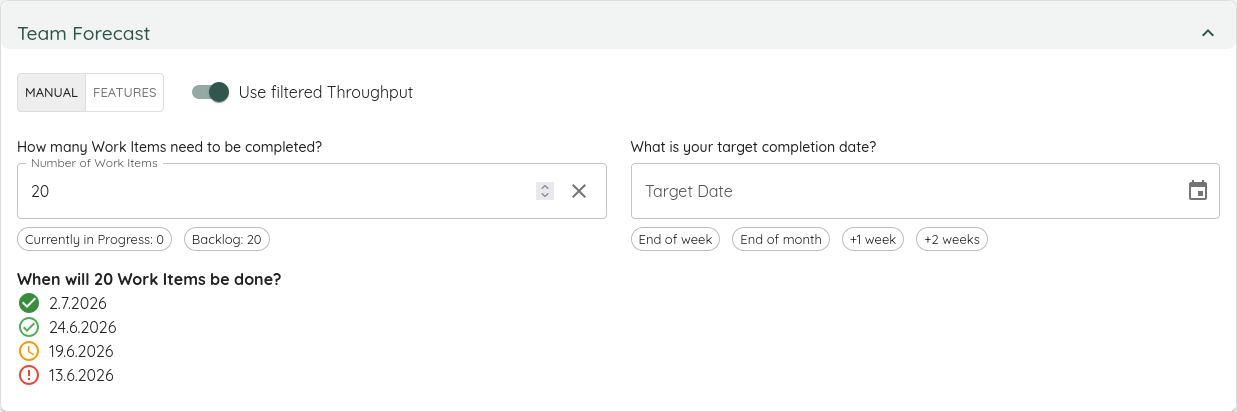
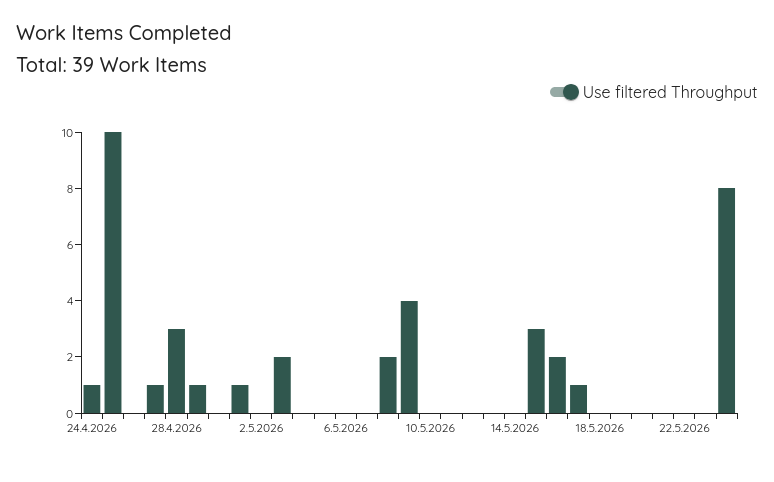
The same idea extends to your metrics: a toggle on the Throughput Run Chart, Throughput Process Behaviour Chart (bars and the Average / UNPL / LNPL bounds), and Predictability Score Details lets you flip between raw and filtered views without leaving the page. The team's Quick Settings shows an indicator whenever a filter is active, so you always know which world you're looking at.
The rule builder works wherever rules are used in Lighthouse — including the Portfolio Delivery editor — and it picked up new conditions along the way:
- Does Not Contain
- Is Empty / Is Not Empty — match
null, empty string, or a missing field; no value input required. - AND / OR group mode for combining rules.
Feature Size — View by Closed Date
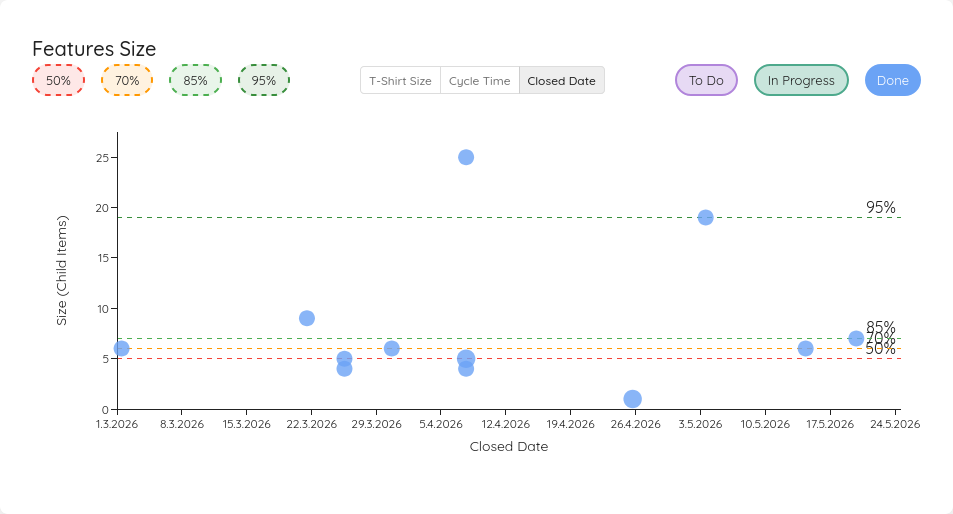
The Feature Size chart got a third Show by mode alongside Estimation Unit and Cycle Time: Closed Date. Picking Closed Date flips the axis (date on X, size on Y), rotates the percentile bands accordingly, and parks any in-flight (not-yet-closed) feature at the Today marker so it stays visible in context.
Documentation Light Mode
The docs site now ships a light / dark color-scheme toggle. The site still defaults to following your OS preference; you can pin either mode explicitly from the header.
Bugfixes and Improvements
- Jira Data Center: 504 Gateway Timeout on team sync — the Jira client used a fixed page size of 1000, which Data Center instances behind a slow reverse proxy can't always return inside their gateway timeout window. Page size is now configurable on the Jira connection (defaulting to 1000 as before).
- Forecast Backtesting: Historical Window (Days) clear behaviour — clearing the Historical Window (Days) field used to snap the value back to
1on every keystroke, forcing you to type156to enter56. The value now clamps on blur instead of on every keystroke, so clear-and-retype works the way you'd expect. - Started Date reset when reverting to the To-Do state — if you moved an item To Do → Doing → To Do → Done (skipping Doing on the second pass), Lighthouse kept the original Started Date set on the first transition. Started and Closed now match for items that never actually re-entered an in-progress state. Applies across Jira, Azure DevOps, and Linear.
- Updated various third-party libraries.
Contributions ❤️
Special thanks to everyone who contributed feedback for this release:
- Liz Rettig
- Evgeniy Stepchenko
- Alex Priestley
- Gabor Bittera
- Will Pyke
- Gordon Price
Lighthouse v26.5.19.1
363989b
huserben
Benjamin Huser-Berta
OAuth Authentication for Work Tracking Systems
Lighthouse can now connect to Jira and Azure DevOps through OAuth, alongside the existing Personal Access Token flow. OAuth is a Premium feature: pick OAuth in the connection wizard, register a client on the IdP side, and Lighthouse drives the rest — token exchange, refresh, and reconnect.
- Jira via Atlassian 3LO, with Jira Software granular scopes.
- Azure DevOps via Microsoft Entra ID, with
vso.work_writeand per-tenant configuration. - Automatic token refresh with single-flight serialization, so concurrent requests can't double-refresh and burn rate limits.
- Disconnected-state surfacing — a status icon on the connection list flags connections that need attention, and a Reconnect banner walks you through the popup-based OAuth handshake without leaving the connection edit dialog.
IdP-side setup is documented under the existing work-tracking-system pages: Jira and Azure DevOps.
API Key Scopes on the Listing
The API Keys settings page now shows each key's scope set in place of the Created By column. The scope column makes it obvious at a glance which Teams and Portfolios a given key can act on. The Scopes column is shown only when RBAC is enabled.
Bugfixes and Improvements
- Cache thread-safety under concurrent metric requests —
Cache<TKey,TValue>was backed by a plainDictionary<,>; under concurrent metric load (multiple teams, background services racing user requests) the dictionary could corrupt and start throwingIndexOutOfRangeExceptionon every subsequent call to the affected key, until process restart. Switched toConcurrentDictionary. Reported by Liz with a detailed diagnosis and reproduction. - Setting Feature WIP from a Portfolio — the Portfolio → Team feature-WIP update returned HTTP 500 because the RBAC scope check on
ForecastController.UpdateForecastForProjectran against the wrong entity. The update did persist, but the error was disruptive. Fixed. - Forecasts refresh in place after Feature WIP changes — previously you had to navigate away and back for the new forecast dates to show up. Forecasts now update immediately, so the impact of a WIP change is visible without losing your place.
- Updated various third-party libraries.
Contributions ❤️
Special thanks to everyone who contributed feedback for this release:
Lighthouse v26.5.14.2
Role-Based Access Control
This release introduces Role-Based Access Control (RBAC) — a Premium feature for fine-grained control over who can read and edit teams and portfolios. RBAC builds on top of OIDC authentication and is configured under Settings → Access.
What the four roles can do
- System Admin — full control. Manages users, group mappings, and connections; creates, edits, clones, and deletes teams and portfolios.
- Team Admin (scoped to a specific team) — reads and edits the assigned team's settings, throughput, features, and metrics.
- Portfolio Admin (scoped to a specific portfolio) — reads and edits the assigned portfolio's features, settings, and metrics.
- Viewer (scoped to a team or portfolio) — read-only access to the assigned entity.
In v1, only System Admin creates, clones, or deletes teams and portfolios. Team Admin and Portfolio Admin edit their assigned scope but cannot create new entities. We may widen this in a future release based on feedback.
Key invariants
- Portfolios require at least one team to exist somewhere in the system. The Add Portfolio button stays hidden until the first team is created — including for System Admin and during first-time bootstrap. A portfolio without any team to roll up is structurally meaningless.
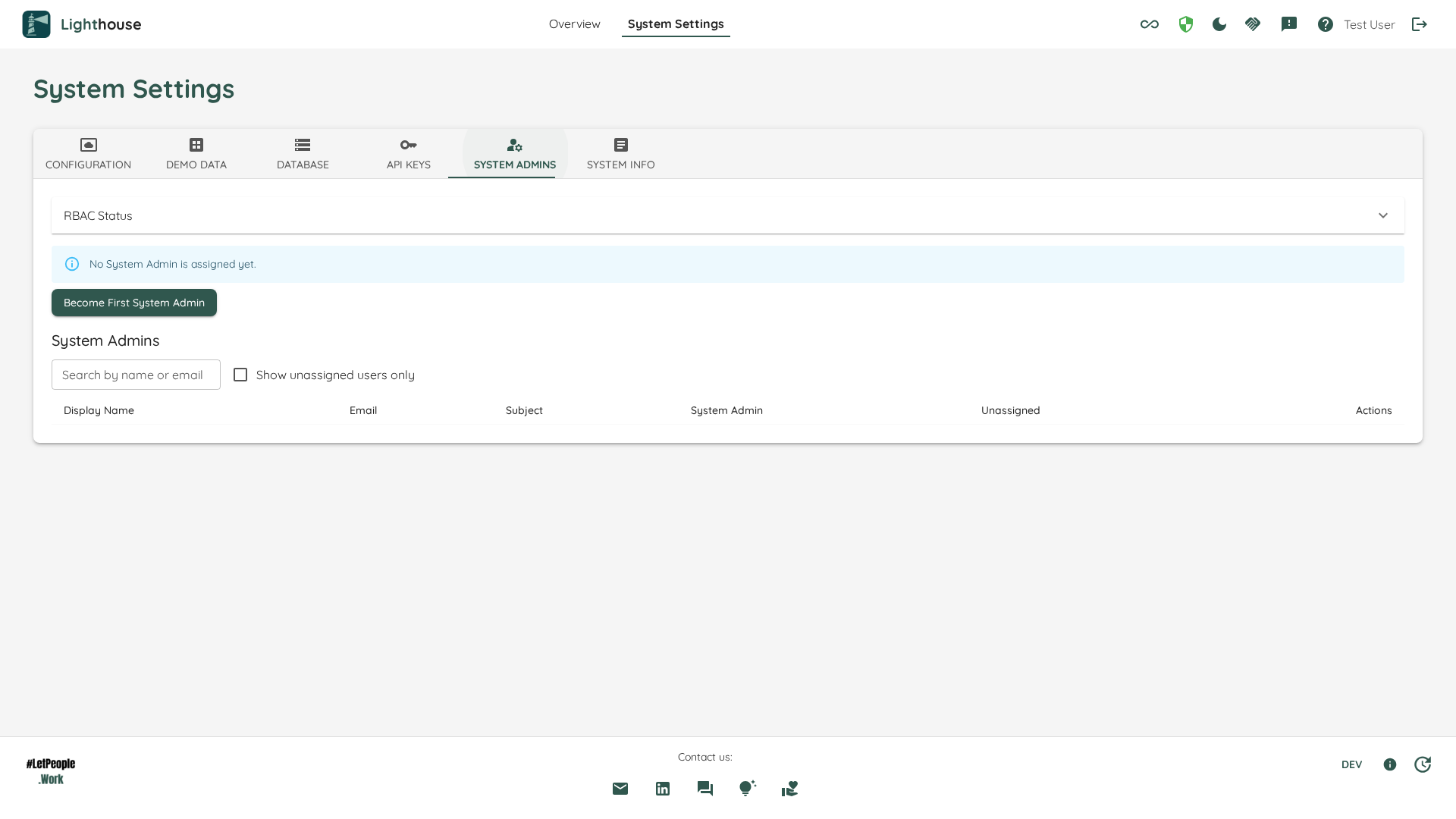
- First-time bootstrap is open by design. Until you've granted the first System Admin via Become First System Admin, every authenticated user has system-admin-equivalent rights — so they can upload the Premium license, configure the work-tracking system, and bootstrap themselves. The system locks down to the granted System Admin (and any configured Emergency Admins) once that step completes.
- Emergency Admins are a recovery path. Users listed in
Authentication.EmergencySystemAdminSubjectsretain System Admin rights even if their database role is removed. Their UI row shows an Emergency Admin badge and the Revoke button is hidden. - SSO group mappings are first-class. Map an IdP group to a role at a specific scope; users in that group inherit the role behaviourally identically to a direct user grant.
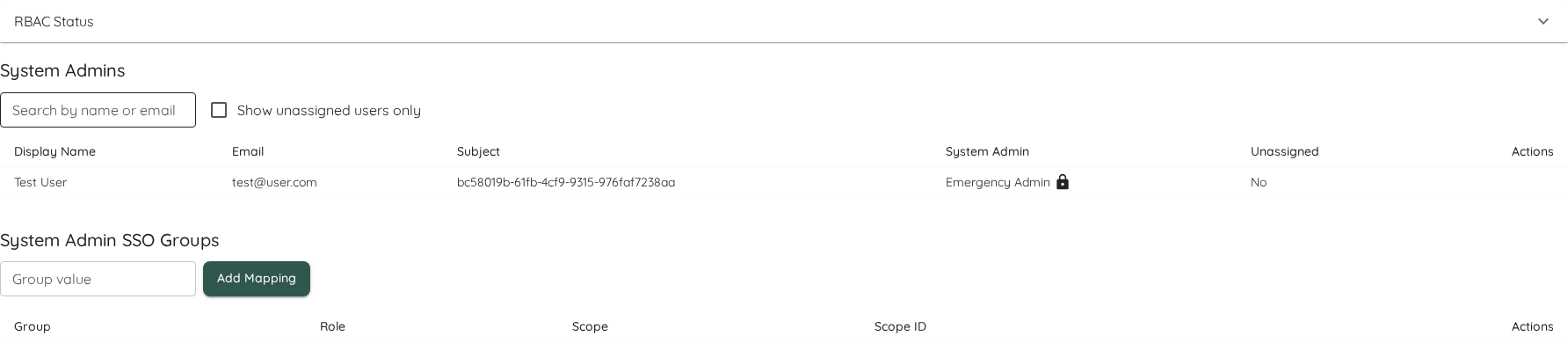
The full role matrix, bootstrap walkthrough, group-mapping guide, and troubleshooting steps are documented under System Settings → Role-Based Access Control. The Authentication page now links across to it.
API Keys with Scopes
API Keys — introduced in v26.5.3.5 for CLI and MCP scenarios — can now be scoped.
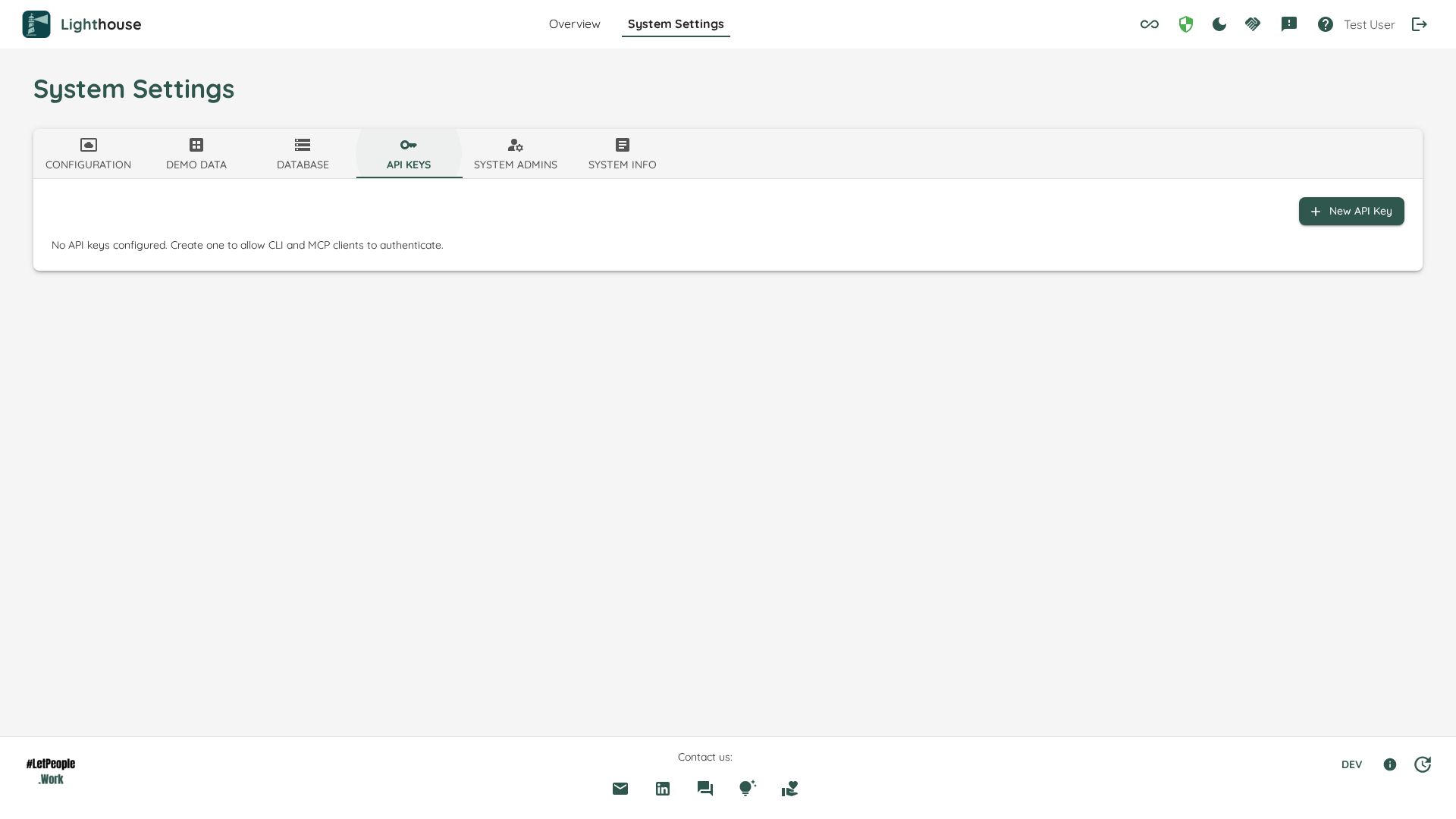
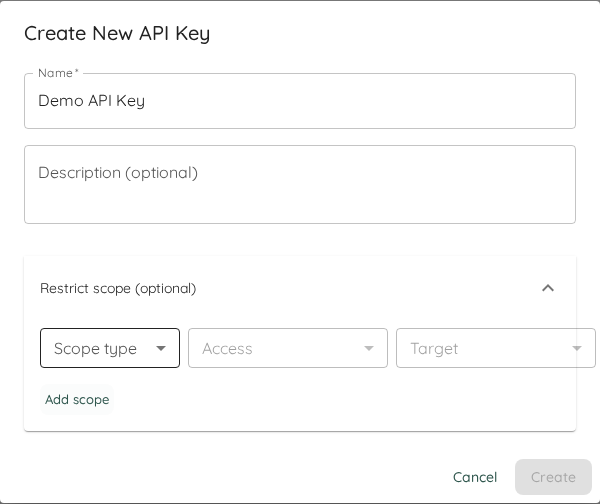
The create dialog now includes a guided scope-row builder so you can compose Team and Portfolio scopes without hand-crafting strings, and API keys inherit the owner's SSO group claims at issuance time so RBAC behaves identically whether you call Lighthouse from the browser or with a key.
Bugfixes and Improvements
- Connection-list visibility for scoped admins — Team Admin and Portfolio Admin can now read the list of work-tracking-system connections, which is needed for the Edit-Settings tab on their assigned team or portfolio to load. Secret option values remain redacted at the DTO layer; only System Admin can create, edit, or delete connections.
- Manual Delivery date updates — editing the Delivery date on a Manual Delivery sometimes appeared to do nothing: the forecast updated but the displayed date stayed put. Root cause was a timezone shift on westward zones; delivery dates now render in UTC and reflect changes immediately.
- Updated various third-party libraries.
Contributions ❤️
Special thanks to everyone who contributed feedback for this release:
Lighthouse v26.5.3.5
0a52b58
huserben
Benjamin Huser-Berta
Support for new Lighthouse Clients
This release introduces a new set of external Lighthouse clients for automation and AI-assisted workflows.
You can now use Lighthouse through:
- a dedicated CLI for terminal workflows, scripts, and CI
- a local MCP stdio server for tools such as VS Code / GitHub Copilot and similar local MCP clients
- a shared MCP HTTP server for hosted or team-wide AI integrations
To support these non-browser clients, Lighthouse now also supports API Keys for authenticated CLI and MCP usage.
For setup details, examples, and download options, see the live documentation:
Bugfixes and Improvements
- For various charts, the dates in the x-axis were unreadable for larger time horizons. This should be fixed now.
- Adjusted the RAG calculation for the Feature Sizes in the portfolio to give more clear signals
- Updated various third-party Libraries
Contributions ❤️
Special thanks to everyone who contributed feedback for this release:
Lighthouse v26.4.25.4
8829161
huserben
Benjamin Huser-Berta
Load Balance Matrix
This release introduces the Load Balance Matrix (LB-Matrix):
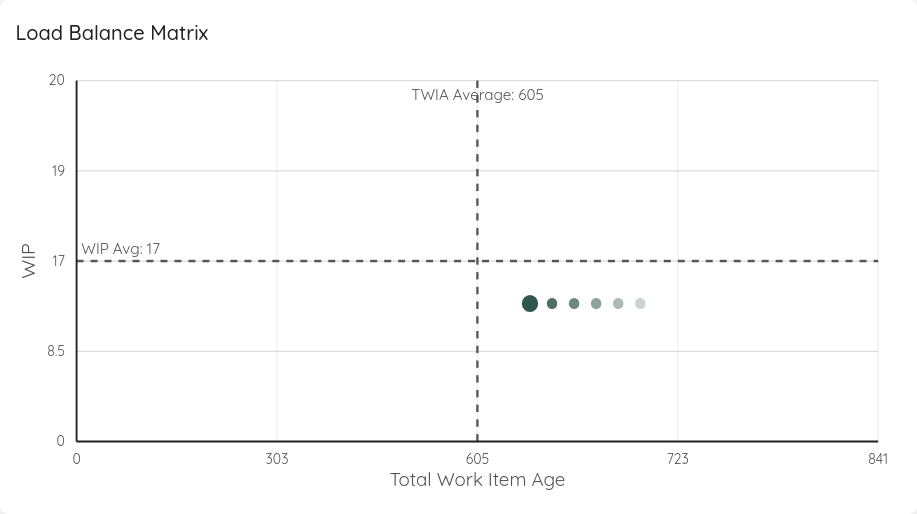
It is based on our blog post Limit Work in Progress without Work In Progress Limits and can be used to control your WIP.
It is available under Flow Metrics in your Team and Portfolio Metrics section and comes with a fully implemented RAG system to help you better control WIP with concrete proposals.
Default Size Tweak
If we use Override States for the default size of features, we used the default size no matter what. However, there may be cases where we started to break down a Feature into work items, and the count is already exceeding the default size. This meant, we use a lower value for our forecasts although we already knew that it will be most likely more work.
The new behaviour is, that in such a case, we're taking the actual work item cound instead of the default size. This will lead to more realistic forecasts.
This Feature was proposed through our new Product Idea Board
REST API Versioning
The REST API is now available with specific versions, to make sure you have more stable endpoints if you are using a script or other client that works against the Lighthouse REST API.
You can reach the API right now through /api/v1/ and we will introduce new versions whenever there is a breaking api change.
Bugfixes and Improvements
- Issue with showing Dates and States in Cycle Time Scatterplot, Work Item Aging Chart, and Simplified CFD are now fixed
- Updated various third-party Libraries
Contributions ❤️
Special thanks to everyone who contributed feedback for this release:
Lighthouse v26.4.19.10
bfd2c02
huserben
Benjamin Huser-Berta
Metrics Improvements
We've worked on the feedback we got from the UX overhaul, and refined our Metrics further. Following changes were made in this release.
Simplified Metrics Categories
The available categories in the Metrics section have been consolidated from six categories to four:
- Flow Overview --> Flow Overview (unchanged)
- Cycle Time --> Merged into Flow Metrics
- Throughput --> Merged into Flow Metrics
- WIP & Aging --> Merged into Flow Metrics
- Predictability --> Predictability (unchanged)
- Portfolio & Features --> Portfolio & Features (unchanged)
Each chart is now appearing exactly in one category. While the Flow Overview will show you the status at a quick glance, the Flow Metrics will allow you to dive deeper and get into details.
Arrivals Run Chart and Process Behaviour Chart
The Metrics Dashboard now includes Arrivals as a first-class metric for both Teams and Portfolios:
- Arrivals Run Chart: Shows the daily count of work items started over the selected date range. Complements the Throughput Run Chart by visualizing the intake side of flow.
- Arrivals Process Behaviour Chart: Applies XmR-chart analysis to the arrival rate, highlighting special-cause variation in how many items enter the system per day.
The Run Chart is part of the Flow Metrics category, while the PBC can be found in the Predictability category alongside the other PBCs.
The Arrivals Run Chart includes a two-factor status indicator that checks both arrivals-versus-departures balance and whether arrivals are continuous or batched.
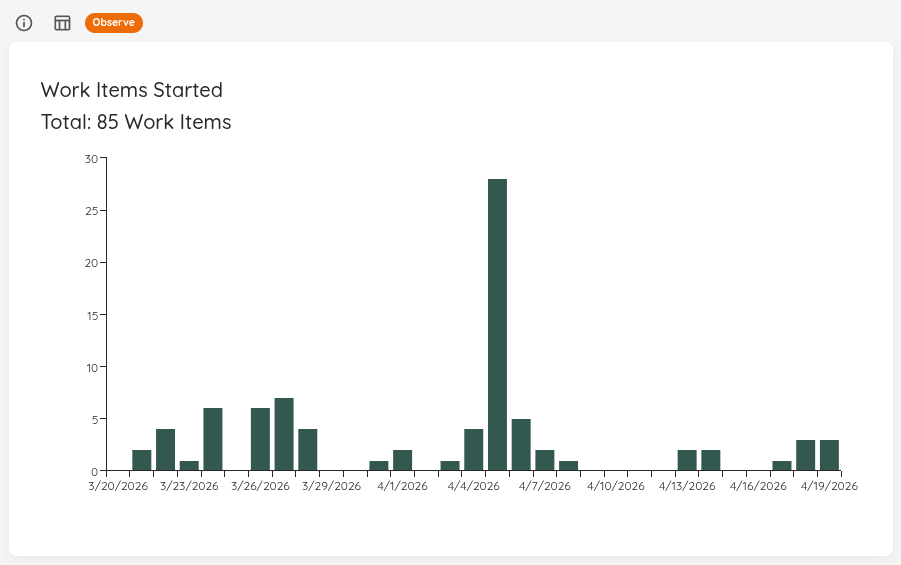
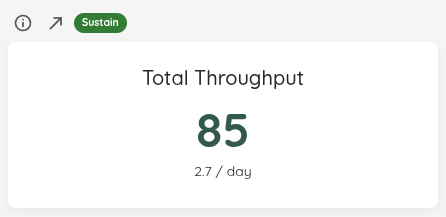
Total Throughput and Total Arrivals Info Widgets
To give a decent overview, both the Throughput as well as your arrivles (items you've started) are now visualized in an individual Metric on the Flow Overview page.
Removal of Started vs. Closed Widget
As we have an individual widget for Total Throughput and Total Arrivals, this widget was obsolete and was removed.
Feature Size Percentiles
For Portfolios, you can now also see in the Flow Overview page a summary of your Feature Sizes (similar to the Cycle Time Scatterplot). This allows you to see how big your features are at a quick glance.
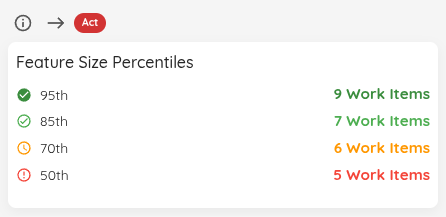
Trend Indicators
All Flow Overview info widgets now display trend indicators comparing the current date range to a prior period:
- WIP Overview, Features Worked On (Teams), and Total Work Item Age compare snapshot values at the start and end of the selected range.
- Predictability Score, Cycle Time Percentiles, Total Throughput, Total Arrivals, and Feature Size Percentiles compare the current period against an equal-length window immediately before the start date.
- Percentile tooltip rows now use a
previous → **current**format with the current-period value emphasized.
The trends are neutral, and simply indicate whether you things are increasing or decreasing compared to a previous period.
Time Filter for Widgets
While previously the WIP Overview, Features Worked On, and Total Work Item Age were simply ignoring any time selected, and showed the current state, they will now resolve their values as of the selected end date. Changing the date range will change the displayed counts to reflect the system at that point in time.
Note: The Blocked Items widget does not support this (yet)
Other Metrics Improvements
Apart from the above, the following things related to metrics were improved:
- The Predictability Score was adjusted to give more accurate results. Previously, with an increase of the input, the score had a tendency to be too optimistic
- Removed the Info icon when a baseline was missing in the PBCs - it will be reflected in the RAG status instead
- The Control Limits as well as the Average Lines for PBCs are now rounded to not have any decimals
- Total Work Item Age over Time RAG status was showing the wrong values
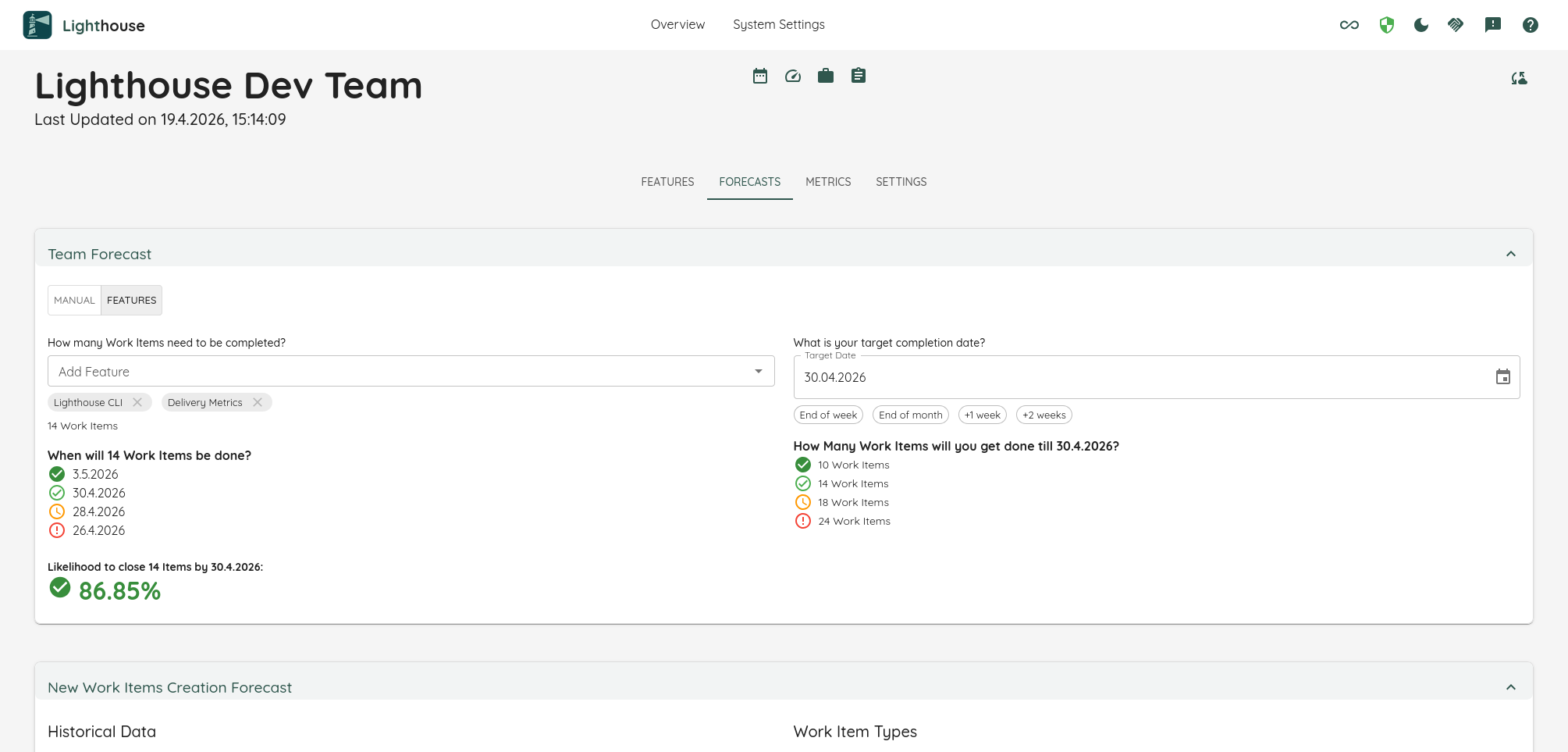
Redesigned Team Forecast
The Team Forecast has been redesigned to make forecasting faster and more intuitive:
- Auto-run forecast: The forecast now runs automatically as you type — no more "Forecast" button.
- Smart quick-pick chips: Select your remaining work directly from contextual suggestions. WIP and Backlog counts are pulled automatically from your team's current state so you can pick a sensible starting point with one click.
- Feature Selection: Switch to Feature Mode and select Features from your backlog. It will automatically use the remaining work of all selected Features to run the forecast.
- Date shortcuts: Choose common target dates instantly — End of week, End of month, +1 week, or +2 weeks — without opening the date picker.
Bug Fixes and Other Improvements
- Product Board: Various references to the newly introduced Product Board were added
- Load all Azure DevOps Boards: Previously only the first 100 boards on any Azure DevOps Projects were shown. Now all boards are loaded.
- Show Work Items for Features in Delivery: You can now, similar to the Team and Portfolio Feature view, see what Work Items belong to a feature when expanding the Delivery View
- Update Manual Deliveries: Fixed issue that prevented any update to a delivery that used manual feature selection mode
Contributions ❤️
Special thanks to everyone who contributed feedback for this release: