1: I really appreciate the original work on this Streaming Service setup, but I fail to understand the use of the worst two browsers for privacy, both do not support Ublock Origin and both are massive data hoarders, so I forked this project to change the browser to Brave instead.
2: I'm unsure if all services will work as intended, as many I don’t use, but the ones I do use are working perfectly.
To Do List:
- Create Uninstall Script
- Create Seperate Install for 1080p and 1440p Screens (Non Steam Deck Consoles)
- Have the SideBar disable in Brave automatically on install
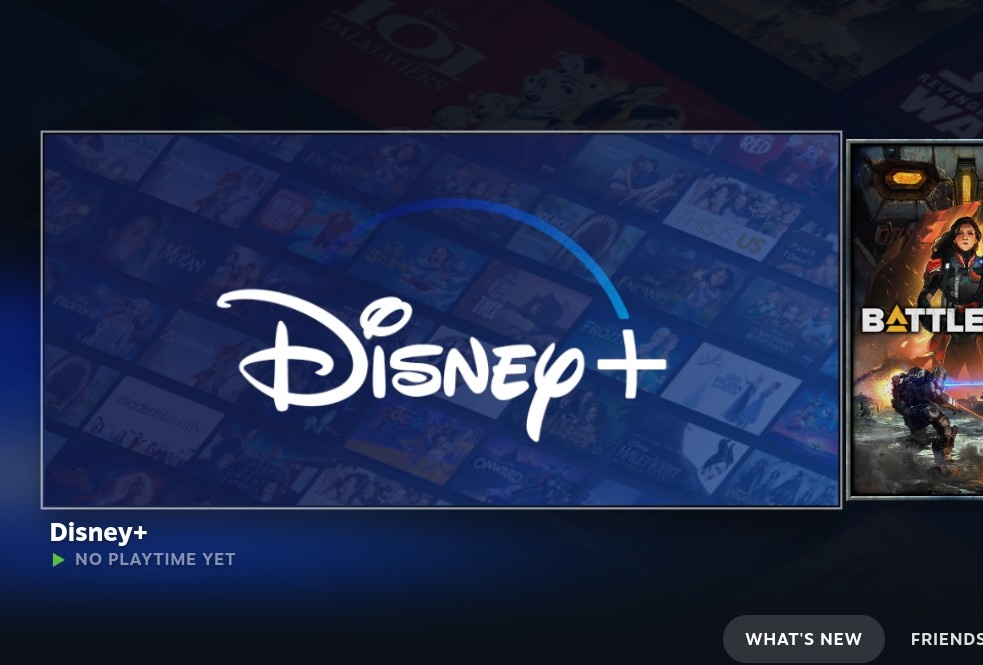
This script will provide a UI to select any URLs found in the data/links.index source file, and will create desktop icons and add them to Steam. It is compatible with all devices running SteamOS.
 |
The list below is based on the index found in the source tree and may not contain the full list. Review data/links.index for the most up-to-date data.
- ABC IView
- AirGPU
- Amazon Luna
- Amazon Prime Video
- Angry Birds TV
- Antstream
- Apple TV
- BBC iPlayer
- BritBox
- Binge
- Blacknut
- Boosteroid
- CBBC
- CBeebies
- Channel 4
- Crave
- Criterion Channel
- Crunchyroll
- Curiosity Stream
- Daily Wire
- Discord
- Disney+
- DocPlay
- Dropout
- Emby Theater
- Fox
- Fubo TV
- GeForce Now
- GBNews Live
- GlobalComix
- Google Play Books
- HBO Max
- Home Assistant
- Hulu
- Internet Archive Movies
- ITV X
- Kanopy
- Microsoft Movies and TV
- My5
- Nebula
- Netflix
- Newgrounds Movies
- Newgrounds Games
- Kogama
- Paramount+
- Peacock TV
- POP Player
- Puffer
- Plex
- Pocket Casts
- Poki
- SBS Ondemand
- Scratch
- Sling TV
- Spotify
- Stan
- Steam Broadcasts
- Squid TV
- TikTok
- Threads
- Twitch
- Vimeo
- Virgin TV Go
- VK Play
- Xbox Game Pass Streaming
- Xiaohongshu (RedNote)
- YouTube Music
- YouTube TV
- YouTube
- WebRcade
- Switch to desktop mode
- Open the Discovery App
- Install Brave Browser
- Open then close Brave (This will create your main profile, usualy will be called "Work" but you can rename this later if you want)
- Paste the following into your Konsole
curl -L https://github.com/NexGen-3D-Printing/SetupStreamingServices-Brave/raw/main/install.sh | bash
- Once completed, Brave will automatically launch into the new profile, you now need to disable the SideBar: Go to the Hamburger menu and select "Off" for the SideBar menu, once done, you can close Brave again.
- You can now return to Gamescope (Game Mode/Big Picture Mode), and use the SteamGridDB Decky plugin to add images to the new streaming services launchers.
After opening a shortcut, enable native touch support to improve the user experience.
- Open controller settings for the platform.
- Select
Edit Layout. - Select
Action Sets. - Select the
Default Settingsgear. - Select
Add Always-On command. - Select
Add command. - Select
System. - Select
Touchscreen Native Support.
Return to your application screen, and use touch input.
I have configured the Home Assistant App to use http://homeassistant.local:8123 but this may not work, so you will need to edit the .desktop file with your specific local IP address.
- The .desktop file is located in ~/Applications/StreamingServices and as an example, change the launch argument from "com.brave.Browser http://homeassistant.local:8123" to "com.brave.Browser http://192.168.0.123:8123"
- Delete the launchers from Steam.
- Delete the follwing folder: ~/Applications/StreamingServices. (Home/Applications/StreamingServices)