The goals for students are:
- be able to fork the repository to their own GitHub account
- be able to clone their forked repository to their local machine
- fix an existing issue or identify and fix a new issue in the code
- submit a pull request back to the original repository
This is a simple console based contact manager. The manager will read contacts from a CSV file (fname, lname, email) and print, search, add, and delete contacts and also write the contacts back to a file.
The code is written in C and contains the necessary files for an Eclipse project. (This code was produced on OpenSUSE 13.1 and Eclipse Kepler). The Makefile is provided and does not contain any intentional bugs. A student may use Eclipse or may choose to use a simpler text editor to work with this code.
A number of issues are associated with this repository that you can choose to fix. Some issues are more difficult than others, and some issue reports are more descriptive than others. There may be issues in the code that have not been reported, and some reported issues may have misleading descriptions. This is done to better emulate the fact that bug reports against a project are never perfect. There are a wide variety of issues listed. Some issues are bugs, some issues are enhancements or requests for new functionality, and some are documentation issues. Each student should be able to choose an issue of the appropriate difficulty to fix.
Be sure to run the cmanager executable from the root directory like so: bin/cmanager
- header files
- dynamic memory
- arrays
- file i/o
- enum
- typedef
- struct
- function pointers (optional)
The coding conventions used in this code are located here: http://zeus.cs.pacificu.edu/chadd/cs300f11/coding.C.v6.pdf An importable Eclipe Code Style Formatter description can be found here: http://zeus.cs.pacificu.edu/chadd/cs300f11/CS300PrefsF11.xml.tar.gz
You are welcome to use Eclipse or [Geany] (http://www.geany.org/) or any other text editor for this project.
- Fork your group's ContactManger-Example-C-Group-NUMBER repository to your personal GitHub Account.
- Clone your personal copy of ContactManager-Example-C-Group-NUMBER to your local computer
git clone git@github.com:USER/ContactManager-Example-C-Group-NUMBER.gitreplacing USER and NUMBER.
- Add the upstream:
git remote add upstream git@github.com:cs360f16/ContactManager-Example-C-Group-NUMBER.git
- Choose an issue to work on. Comment on that issue to claim it.
- In your local repository on your computer: Make a branch:
git branch PUNETID_issue_XXXgit checkout PUNETID_issue_XXX
- Edit file(s).
git add FILEgit commit -m "message"- Push changes to your personal GitHub Account
git push origin PUNETID_issue_XXX
- From your web browser Make a pull request back to your group's repository. Be sure to use branch
PUNETID_issue_xxx. - Wait for at least one positive comment from teammates.
- If you get negative comments or suggestions, go back and edit the files.
- In your local repository on your computer:
git add ...git commit ....git push origin PUNETID_issue_XXX. Go to #10.
- From your web browser Merge the pull request in the group repository.
- Note: The [GitHub Merge Button] (https://help.github.com/articles/merging-a-pull-request/) always does a
--no-ffunless you specify [Squash and merge] (https://help.github.com/articles/about-pull-request-merges/). Squashing commits can still produce repositories out of sync because multiple commits in the local repository may be squashed into one commit in the remote repository, creating a commit in the remote repository with a hash code that does not exist locally. - If the merge cannot happen automatically, click "Use the command line" and follow the directions. Replace the https address in the pull request with the correct ssh address! It is best to do a fresh checkout into a new directory to resolve this conflict! Note: Pressing the SSH buttton may give you an error. Press the back arrow on your browser and try again or don't press the SSH button and just use the correct SSH address in line 2 of step 1.
- Step zero:
 cd ~/Documents;
 mkdir issue_XXX;
 cd issue_XXX;
 git clone git@github.com:cs360f16/ContactManager-Example-C-Group-NUMBER.git
NOTE: Use cs360f16 not PUNETID.
NOTE: The the screen shot below indicates you should use --no-ff. Your group should decide if you want to use the --no-ff option or not.
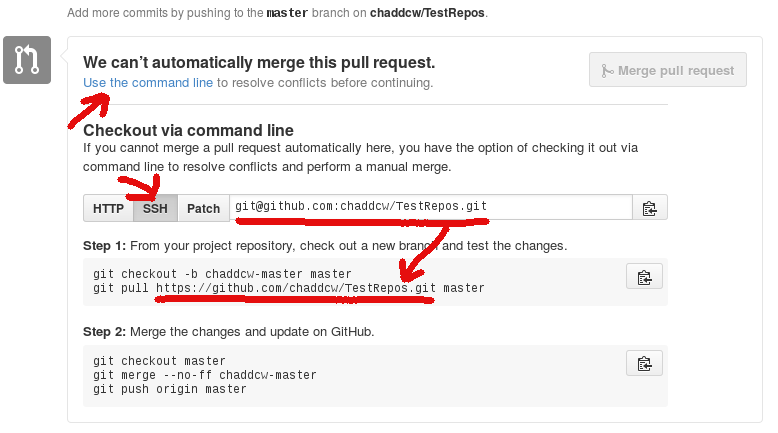
- In the above image, the SSH address should be
git@github.com:USER/ContactManager-Example-C-Group-NUMBER.git masterin thegit pullcommand represents the branch in the remote repository. Likely, this will bePUNETID_issue_XXXfor you rather thanmaster.
- In your local repository on your computer: bring down the updates from the group repository
git checkout mastergit fetch upstream masterGet changes from the group repositorygit merge upstream/masterMerge those changes back tomasteron your local repository.- On succcess:
git push origin masterto push commits up to your personal repository on GitHub. - On success,
git branch -d PUNETID_issue_XXXDelete the branch - On failure: Resolve the conflict.
- edit files to remove the >>> === <<<
git add FILEgit commit -m "message"git merge upstream/master- Push to origin from master.
- On succcess:
- At this point you can delete any directory you created in step 11 if you want.
- Go close the Issue listed in the group repository.
- NOTE Anytime a team member commits to the group repository you can update
masterin your local repository. - Remember, never switch branches with uncommited changes!
- Goto to step #3.
In order to use this repository to simulate a group open source project, I do the following:
- Create a GitHub Team for each student group
- [Duplicate this repository] (https://help.github.com/articles/duplicating-a-repository/) for each student group.
- For example, I create ContactManager-Example-C-Group-1 for group 1.
- The group is given Admin rights to its own Group repository
- The instructor is given Admin rights to each Group repository
- Clone the issues from this repository to each of the new -Group-# repositories.
- You can use [github-issues-import] (https://github.com/chaddcw/github-issues-import) to copy issues from one repository to another.
- I use the [issue_noheader.md] (https://github.com/chaddcw/github-issues-import/blob/issue\_noheader\_template/templates/issue\_noheader.md) template to keep the issues in the Group repositories looking clean.
- Each group follows the workflow above to manage their group repository.