This project was generated using Angular CLI version 19.1.1.
Before starting, we need to configure everything needed to get started.
// src/environments/environment.development

export const environment = {
  socket: {
    // The frontend will connect to socket via this URL
    url: "ws://localhost:9090",
    // The socket server will listen to this port
    port: 9090,
  },
  smtp: {
    // The SMTP server will be accessible via this hostname
    hostname: "127.0.0.1",
    // The SMTP server will listen to this port on provided hostname
    port: 25,
  },
};To start a local development server and start listening to server, just run the commands:
# For starting the SMTP server
npm run server

# For starting angular
npm run start
If you're using VS Code and have the Terminals Manager extension installed, you can use: Ctrl + Shift + P then execute the command Terminals: Run
Once the modules are running, open your browser and navigate to http://localhost:4200/.
In order to verify that everything is working fine, we will use a telnet client.
Open a CLI, run the following commands (hit Enter button between after line).
# Replace 127.0.0.1 by your SMTP hostname and 25 by your SMTP port
EHLO 127.0.0.1
MAIL FROM: <sender@example.com>
RCPT TO: <recipient@example.com>
DATA
From: sender@example.com
To: new-recipient@example.com
Subject: Telnet email

This is my first test message sent using the Telnet client on Windows
<p>This is good</p>
.
See the lines below for example of responses:
# Replace 127.0.0.1 by your SMTP hostname and 25 by your SMTP port
telnet 127.0.0.1 25
>>> 220 LAPTOP-3600AH7H ESMTP

EHLO 127.0.0.1
>>> 250-LAPTOP-3600AH7H Nice to meet you, [127.0.0.1]
>>> 250-PIPELINING
>>> 250-8BITMIME
>>> 250-SMTPUTF8
>>> 250 STARTTLS

MAIL FROM: <sender@example.com>
>>> 250 2.1.0 Sender OK

RCPT TO: <recipient@example.com>
>>> 250 2.1.5 Recipient OK

DATA
>>> 354 Start mail input; end with <CRLF>.<CRLF>

From: sender@example.com
To: recipient@example.com
Subject: Telnet email

This is my first test message sent using the Telnet client on Windows
.
>>> 250 2.0.0 Ok: queued as ABC123456789When starting your application, you should see in your browser the following things (see docs folder).
Every received mail is displayed on the main page.
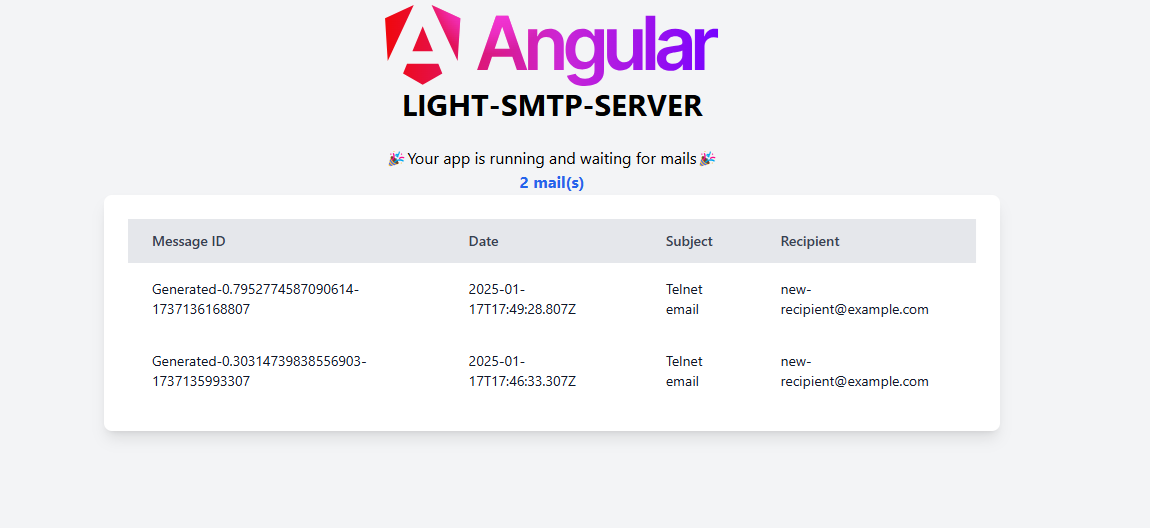
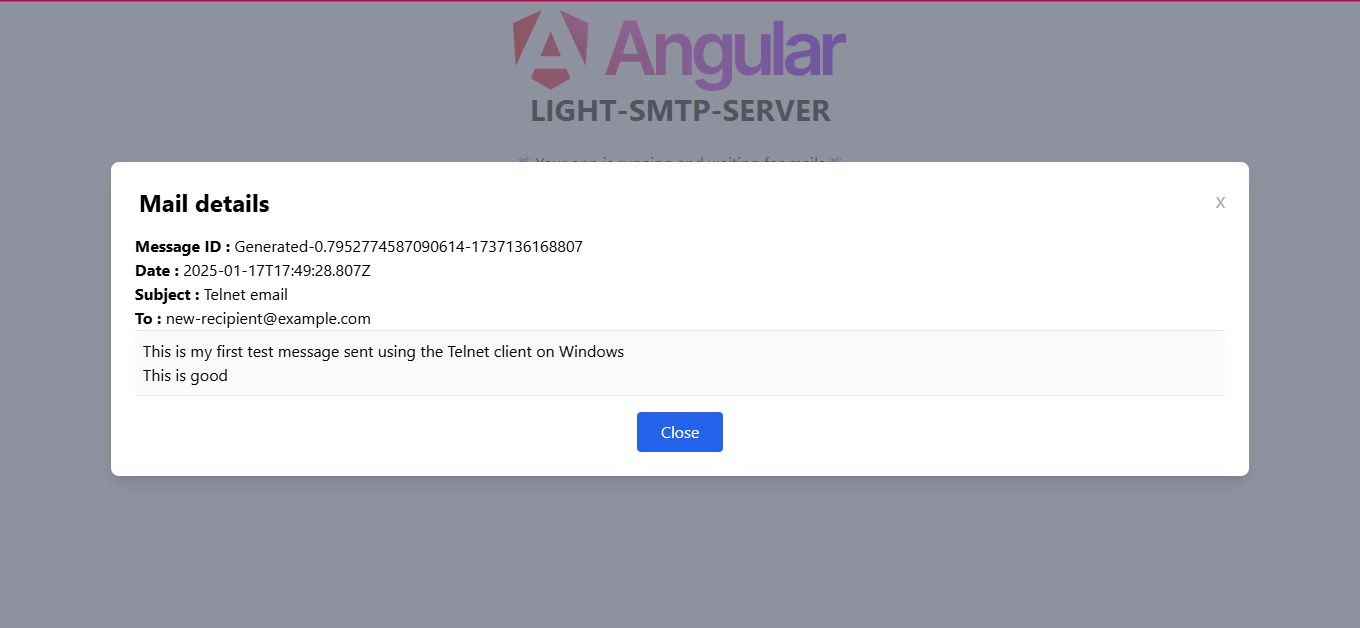
The body of each message can be displayed by clicking the row corresponding the targeted message.