





MailMan CLI — send and read Gmail just by asking your AI assistant, built for IndiaNIC infrastructure.
🌐 Live tour & docs: mailman.indianic.dev 📦 Public build:
@integratex/mailman—npm i -g @integratex/mailman
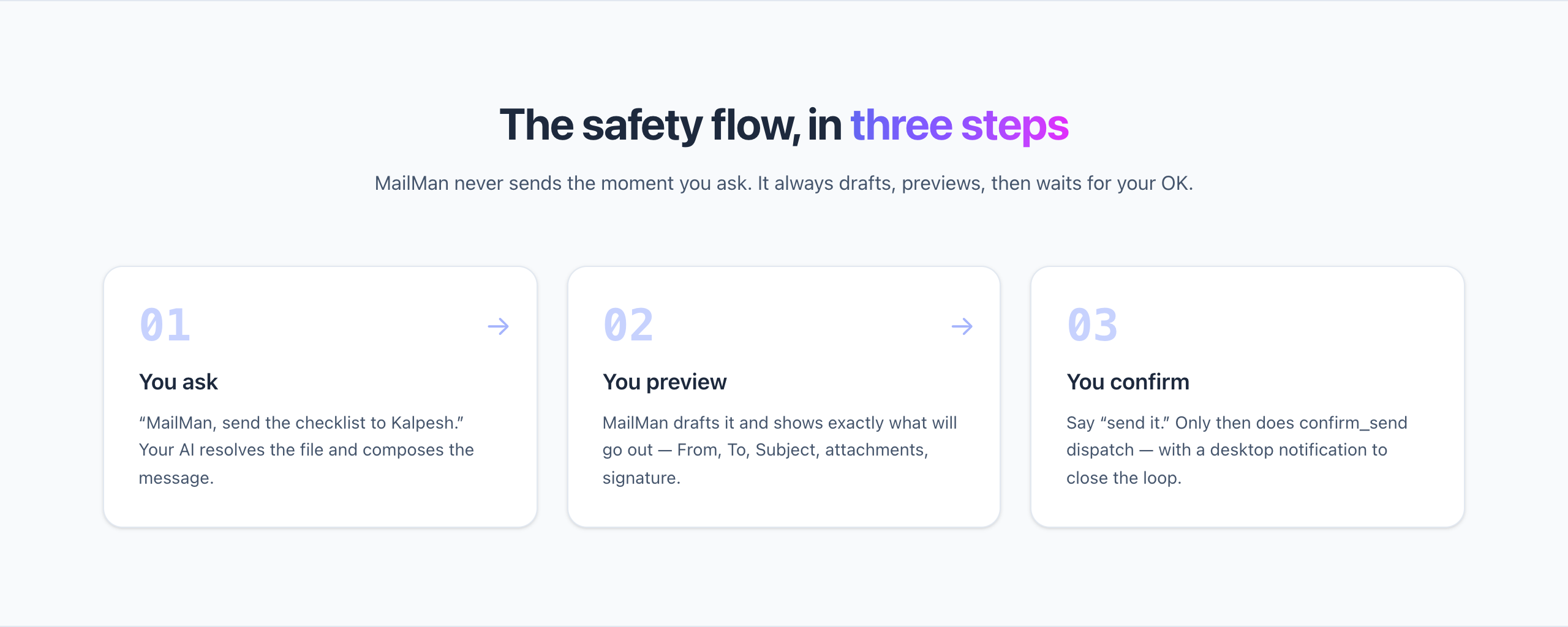
Ask your AI in plain English. MailMan drafts, previews, and only sends on your OK — never the moment you ask.
Real prompts, across Claude Code · Cursor · Gemini CLI · Windsurf — email happens where you already work:
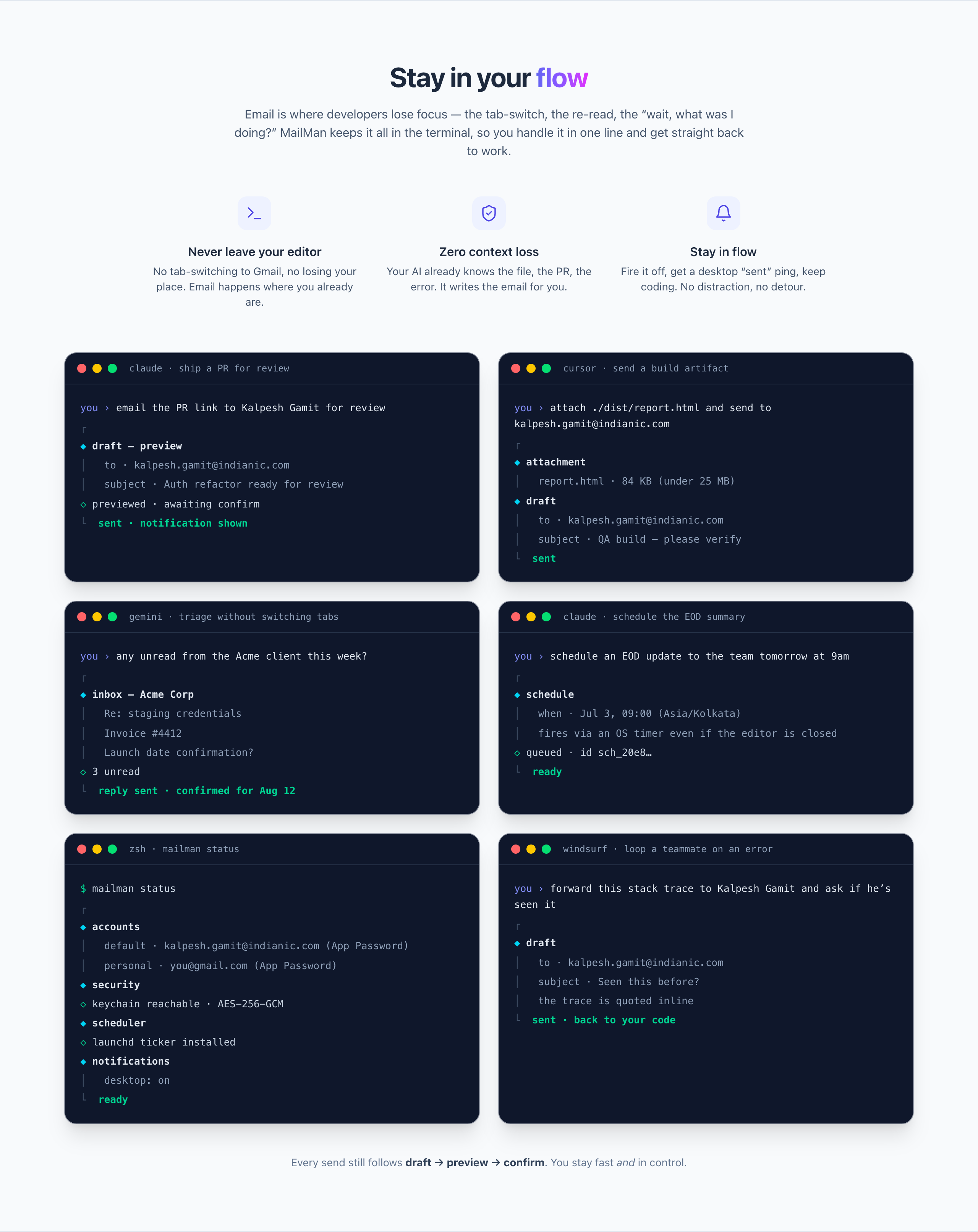
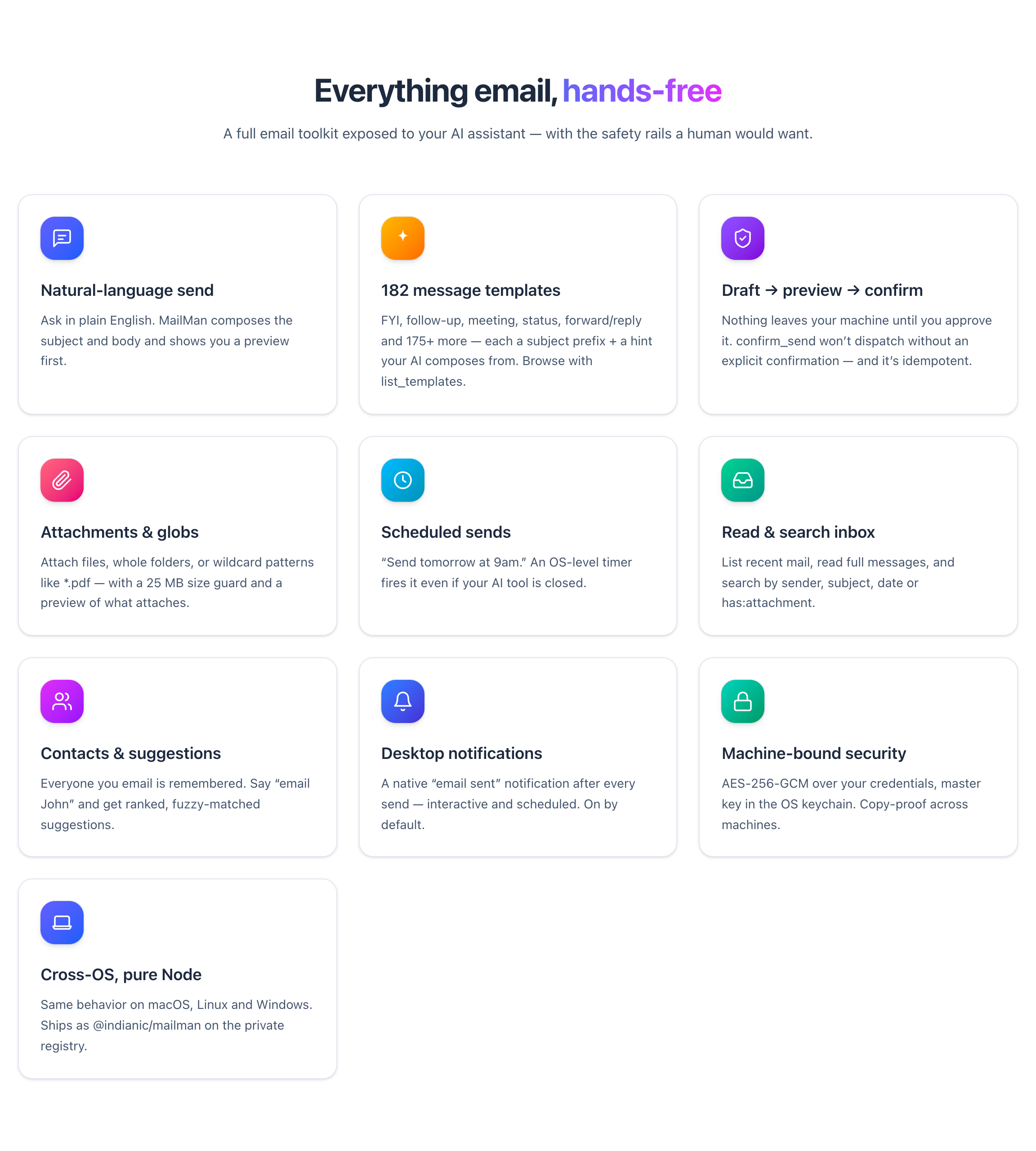
- Send and read Gmail from your AI in plain English — "send those docs to Kalpesh," "show my last 10 emails"
- Draft → preview → confirm safety — nothing sends until you approve (
confirm_sendwon't dispatch without an explicit confirmation) - 182 message templates +
list_templates(FYI, follow-up, meeting, forward/reply and more — a subject prefix + a hint your AI composes from) - Attachments (files, folders,
*.pdfglobs), scheduled sends via an OS timer, inbox list / read / search, contacts + recipient suggestions - Multi-account, machine-bound encrypted credentials (OS keychain), desktop notifications on send
- Installs into Claude Code, Cursor, Gemini CLI, Windsurf, Codex (
mailman register) — cross-platform Win/Mac/Linux - 23 MCP tools, exposed to your AI over MCP
Point the @indianic scope at the private registry, then install globally with npm or pnpm:
# npm
npm config set @indianic:registry https://npm.indianic.in
npm install -g @indianic/mailman

# pnpm
pnpm config set @indianic:registry https://npm.indianic.in
pnpm add -g @indianic/mailman
(The scope config lands in your ~/.npmrc — which npm, pnpm, and yarn all read — so no --registry flag is needed and public dependencies still resolve from the public registry. mailman update later upgrades in place with whichever manager you used.)
# First-run setup — adds a Gmail account (email + App Password) and
# registers your AI tools (Claude Code, Cursor, Gemini CLI, Windsurf, Codex)
mailman init

# Register with AI editors later
mailman register --tools claude,cursor
mailman register -i

# Diagnostics & current state
mailman doctor
mailman status

# Accounts, contacts, settings
mailman account add
mailman settings set defaultBodyType html
mailman settings set desktopNotifications false

# Scheduled sends
mailman scheduled list

# Self-update
mailman update

# Help & version
mailman help
mailman --version
Once installed and registered, you talk to your AI — not the CLI — for everyday email:
You: mailman, send those docs to kalpesh.gamit@indianic.com
AI:  [drafts subject/body, resolves attachments] Ready to send — confirm?
You: yes
AI:  Sent.

You: mailman, list my last 10 emails
You: search for invoices from last month
You: send this tomorrow at 9am instead of now   # goes out even if the tool is closed
Package vs. command names. The npm package is
@indianic/mailman; it installs a CLI you run asmailman. A second alias,mcp-mailman, points at the same binary — use it only on a host that also has GNU Mailman's/usr/bin/mailman.
A native stdio MCP server: your editor launches it via npx -y @indianic/mailman and Claude calls its tools from natural language. It reaches Gmail two ways — SMTP/IMAP for App Password accounts, or the Gmail REST API for OAuth2 accounts. Pure Node.js, so behavior is identical on macOS, Linux, and Windows. Configured once, globally — available from any project.
Manual MCP config (what init/register write for you — note it carries no secrets, credentials live in the OS keychain):
{
  "mcpServers": {
    "mailman": { "command": "npx", "args": ["-y", "@indianic/mailman"] }
  }
}- Claude Code —
claude mcp add mailman -- npx -y @indianic/mailman - Cursor / Windsurf / Gemini CLI / Codex — add the block to that tool's MCP config file.
- docs/FEATURES.md — plain-English + technical feature tour
- docs/PLAN.md — architecture: auth, storage, tools, flows
- docs/SKILLS.md — the MCP tools this server exposes
- docs/CLI.md — every terminal command (setup, accounts, diagnostics)
- docs/CROSS-OS.md — per-OS support matrix
Regular Gmail passwords cannot be used with mailman — Google disabled password login for SMTP/IMAP in 2022, so only an App Password or OAuth2 is accepted. mailman init / account add open with a choice: App Password (paste a 16-char code — the default, simplest path) or Sign in with browser (OAuth2) — no password, and the option to use if you're passkey/passwordless or your Workspace admin disabled App Passwords. mailman auth login <alias> is the same OAuth2 flow as a standalone command.
Passkeys can't be handed to SMTP/IMAP directly, but they work inside the browser sign-in: when OAuth2 opens Google's consent page, authenticate there with your passkey — mailman stores the resulting refresh token, not the passkey.
OAuth2 uses your own Google Cloud OAuth client — a one-time setup that replaces per-account passwords. A browser opens for consent and the refresh token is stored encrypted. On a headless box, it prints the consent URL + an ssh -L tunnel command instead of launching a browser.
- Google Cloud Console → create/select a project → APIs & Services → Library → enable the Gmail API (and People API if you want contact suggestions).
- APIs & Services → OAuth consent screen → External → add yourself as a Test user (so you don't need Google app verification). Publishing status can stay "Testing".
- APIs & Services → Credentials → Create credentials → OAuth client ID → Application type:
Desktop app.⚠️ This must beDesktop app, notWeb application. - Copy the Client ID and Client secret — paste them when
auth login/account addasks.
Error 400: redirect_uri_mismatch? Your client is a Web application type. mailman signs in over a loopback redirect (http://127.0.0.1:<random-port>), which only Desktop-app clients allow — Web-app clients require every redirect URI to be pre-registered with a fixed port, so a random port always fails. Delete the client and create a Desktop app one instead. There is nothing to configure on mailman's side.
Scopes requested: gmail.send, gmail.readonly, contacts.readonly. (gmail.readonly is read access to your whole mailbox — App Password accounts get equivalent read access implicitly via IMAP.)
Credentials are machine-bound, not just encrypted: the encryption key lives in your OS's native store (macOS Keychain, Windows Credential Manager, Linux Secret Service via keytar), never in the config dir. Copying accounts.json to another machine yields useless ciphertext — mailman there refuses to decrypt rather than degrade. Every tool call is appended to a local activity.log (tool name + non-sensitive metadata only — never bodies/credentials).
Linux headless needs a running Secret Service provider (gnome-keyring, kwallet). No keyring → setup fails with instructions rather than storing plaintext. See docs/CROSS-OS.md.
All state (accounts, contacts/recents, settings) lives in one global, per-OS-user directory — never inside a project:
| OS | Path |
|---|---|
| macOS | ~/Library/Application Support/mcp-mailman/ |
| Linux | ~/.config/mcp-mailman/ |
| Windows | %APPDATA%\mcp-mailman\ |
After each successful send (interactive and scheduled), mailman fires a native desktop notification — macOS Notification Center (osascript), Linux notify-send, Windows toast. On by default; best-effort (never blocks/fails a send). Toggle:
mailman settings set desktopNotifications false
mailman settings set desktopNotifications true
Interactive mailman commands show a one-line "update available" notice when a newer version is published (cached daily). Upgrade in place — it uses the package manager that installed it (npm or pnpm):
mailman update # or: mailman upgrade
Restart your AI tools afterward so their MCP server picks up the new version.
MIT