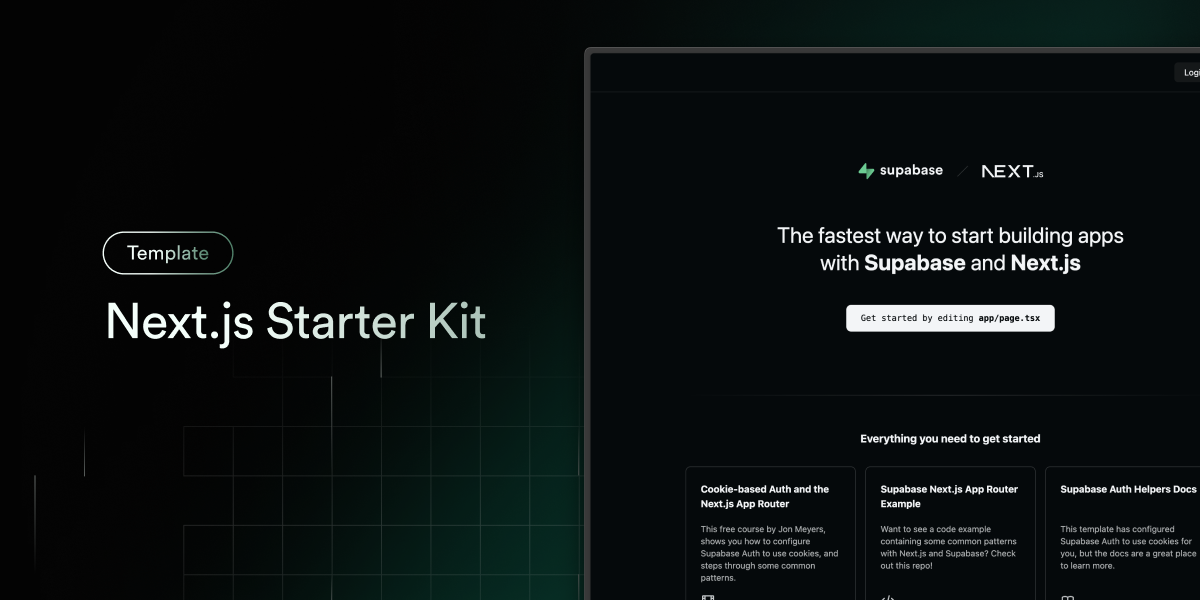
The fastest way to build apps with Next.js and Supabase
Features · Demo · Deploy to Vercel · Clone and run locally · Feedback and issues More Examples
- Works across the entire Next.js stack
- App Router
- Pages Router
- Middleware
- Client
- Server
- It just works!
- supabase-ssr. A package to configure Supabase Auth to use cookies
- Password-based authentication block installed via the Supabase UI Library
- Styling with Tailwind CSS
- Components with shadcn/ui
- Optional deployment with Supabase Vercel Integration and Vercel deploy
- Environment variables automatically assigned to Vercel project
You can view a fully working demo at demo-nextjs-with-supabase.vercel.app.
Vercel deployment will guide you through creating a Supabase account and project.
After installation of the Supabase integration, all relevant environment variables will be assigned to the project so the deployment is fully functioning.

The above will also clone the Starter kit to your GitHub, you can clone that locally and develop locally.
If you wish to just develop locally and not deploy to Vercel, follow the steps below.
-
You'll first need a Supabase project which can be made via the Supabase dashboard
-
Create a Next.js app using the Supabase Starter template npx command
npx create-next-app --example with-supabase with-supabase-app
yarn create next-app --example with-supabase with-supabase-app
pnpm create next-app --example with-supabase with-supabase-app
-
Use
cdto change into the app's directorycd with-supabase-app -
Rename
.env.exampleto.env.localand update the following:NEXT_PUBLIC_SUPABASE_URL=[INSERT SUPABASE PROJECT URL] NEXT_PUBLIC_SUPABASE_ANON_KEY=[INSERT SUPABASE PROJECT API ANON KEY]Both
NEXT_PUBLIC_SUPABASE_URLandNEXT_PUBLIC_SUPABASE_ANON_KEYcan be found in your Supabase project's API settings -
You can now run the Next.js local development server:
npm run dev
The starter kit should now be running on localhost:3000.
-
This template comes with the default shadcn/ui style initialized. If you instead want other ui.shadcn styles, delete
components.jsonand re-install shadcn/ui
Check out the docs for Local Development to also run Supabase locally.
This project uses Redux Toolkit for global state management.
- The Redux store is set up in
app/store.ts. - The store is provided to the app in
app/layout.tsxusing theProviderfromreact-redux. - To add new global state, create a slice (see Redux Toolkit docs) and add its reducer to the
reducerfield instore.ts. - Use
useSelectoranduseDispatchfromreact-reduxin your components to access and update state.
Example usage:
import { useSelector, useDispatch } from 'react-redux';
import type { RootState, AppDispatch } from '@/app/store';

const value = useSelector((state: RootState) => state.example.value);
const dispatch = useDispatch<AppDispatch>();This project now supports automated performance analysis using the Google PageSpeed Insights API.
- Get a Google PageSpeed Insights API Key:
- Go to the Google API Console.
- Enable the PageSpeed Insights API for your project.
- Create an API key and copy it.
- Set the API Key in your environment:
- Add the following to your
.env.localor deployment environment:PAGESPEED_API_KEY=your_api_key_here
- Add the following to your
- When running an audit, include
"performance"in theanalysis_typesarray in the POST body to/api/audit-projects/[id]/analyze. - The backend will fetch performance data from Google PageSpeed Insights in parallel with other analyses.
- Results are stored in the
performance_analysisfield of theaudit_resultstable and returned in the API response.
- The API supports both mobile and desktop strategies (currently defaults to mobile).
- You must have a valid API key set for performance analysis to work.
- See Google's API documentation for more details on the response format.
- The backend now collects all internal and external links from every crawled page and stores them in the
audit_projects.all_links_analysisfield (JSONB). - Each link includes:
href,type(internal/external), anchor text, and the page URL where it was found. - The dashboard UI displays a summary and a table of all unique links found during the crawl, similar to the image analysis section.
- Migration: a new column is added to the
audit_projectstable for this feature.
Please file feedback and issues over on the Supabase GitHub org.