1. How To Install OpenCourse
Since we have not yet published OpenCourse on the internet, using the application currently requires a local installation on the end user's pc. Before actually installing OpenCourse, we need to assure that your system has the necessary runtime and package manager required for using the application.
-
In a terminal emulator, run
node -vto check if you have Node.js installed. If you do, you should get a version output such as v15.8.0- If your machine outputs something else such as command not found, then download Node.js from their official website here
-
Next, clone the OpenCourse repository from Github here using
git clone https://github.com/cs130-w21/9or simply just download the repository as a .zip file. -
Now open a terminal window and change your directory using
cd 9into the '9' directory within the downloaded repository. Now runninglswill output multiple files / folders of which two areopencourse-appandopencourse-backend. One folder is for the frontend environment and the other is for the backend one. -
Within that terminal window, run the command
npm installin the 9-master directory, then change directories once more intoopencourse-appusingcd opencourse-appand then run the commandnpm installto install the required dependencies that your system may not have.- Note you will also have to run
npm install @material-ui/coreifnpm installfrom above did not do so already for you. Material UI is the react framework that our app uses for the card motifs. - Additionally, within the same 'opencourse-app' directory you must also run
npm install firebasefor the firebase module which is used to verify logging in.
- Note you will also have to run
An example of the above commands can be seen in the image below. Simply change the target commands as required.
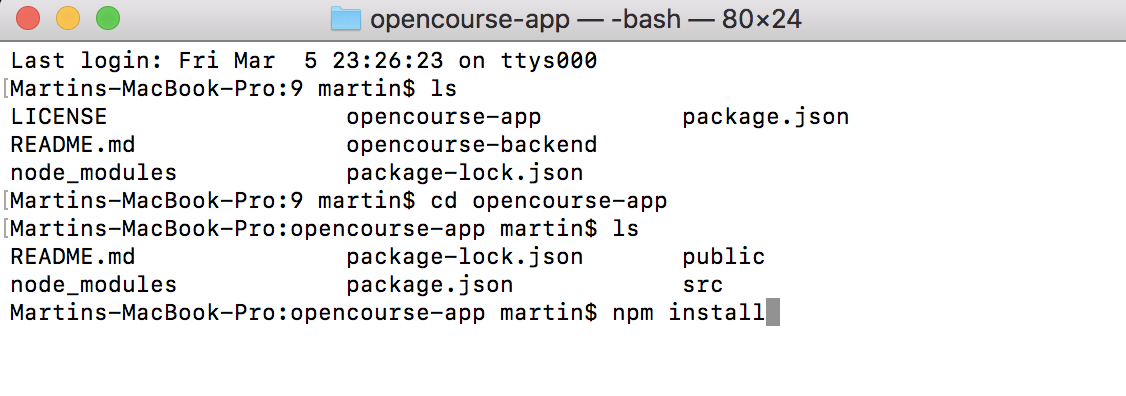
Once all of the above are completed successfully, the installation of the application is finished and you can move on to the next steps here in the manual to begin using the application.